Posts

Showing posts with the label GAFE

Google Calendar - Booking Organizational Resources

Image
If you are in a GAFE school district, your district may have resources available for reservation using your everyday Google Calendar!  This might be used for: shared computer labs common areas (i.e. media center, cafeteria, gymnasium) resources (i.e. device carts, equipment) Any resources will show up on the right hand side of an event in the same area where you add Guests to the event.  It will say Rooms, etc:   Available resources will be listed:   If a resource is already checked out for the time frame you have designated, it will not display in the list.  Once you add it to your event, others will not be able to check it out for the time you have designated. 

Google - Getting New Features As They Appear

Image
I've been asked a couple time how to get the new features as soon as Google releases them when part of a Google Apps for Education account.  First, know that only Super Administrators in the GAFE account are able to set this.  Second, I encourage you to consider strongly the pro & cons to turning this on if you have kids on your GAFE account. That being said, I do enjoy being able to try out new features as they appear so get why others don't like to wait :-) Here is how to turn on automatic Rapid Release of new features: Once logged in to the Admin Dashboard, click on Company Profile Then click on Profile: Look about 2/3rds of the way down the options for the New User Features and New Products options.  Rapid release enables new features as they are available.  Scheduled release is on a delayed schedule. Automatic provides new services to users as they are released Manual requires site Admin to add new services

Google Administration - Whitelisting Domains for Google Classroom

Image
There are two situations that I have run across where a G Suite for Education School would need to whitelist a domain (or subdomain).  These are: If your students and teachers are on two different domains If you are in a situation like me - as a support organization I want to provide training to teachers that are in their own Google Apps district It is quite easy to do this - it just has to be done by a Google Apps for Education Administrator. There are THREE parts to this, make sure all of them are set for it to work properly! Part 1 - add the domains In the Google Admin Dashboard, click on Domain (if it doesn't show, click on the More at the bottom) Once in the Domain management area, click on Whitelisted domains- Click on Add new - 1. Type in the domain to whitelist, then 2. Click on Add Domain to Whitelist - Part II - Set Classsroom Settings Go back to the Home level of the Google Admin panel - click on the Apps icon: Click on the...

Google Contacts - Newest Area to Get Some "Google Love"

Image
Be ready!  Your Google Contacts is about to update its looks.  I don't know about you, but I don't go to Google Contacts often.  I just don't like it.  If you need a refresher, this is what it looks (looked) like - Looked & felt very...dated.  This morning in going to one of my Google accounts, I got the pop-up window in my contacts.  Here is a screenshot of the new look - Hoping that the Google Love includes more than just the interface.  If there are any big changes that make Contacts more easily managed & navigated, you can be sure to see another blog post or two about it!

Google Apps - Looking at the New Drive

Image
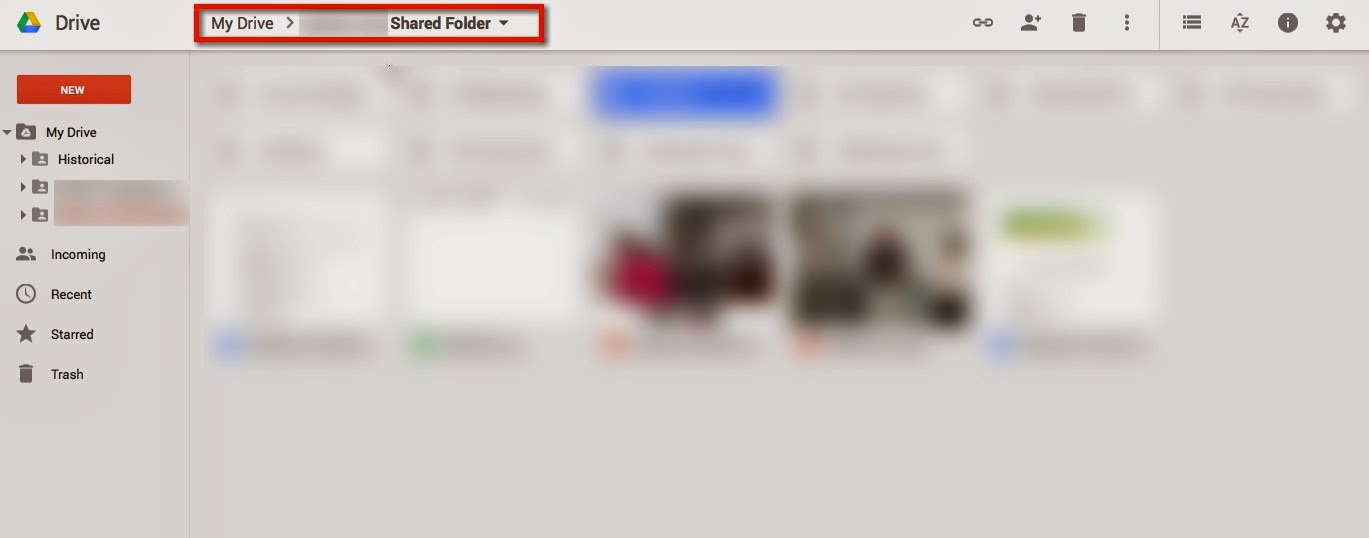
One of my Google Accounts has access to the "new" look of Drive.  There are several key differences that are worth noting if you are changing over!  Here are 5 of the ones I think will impact people the most. 1. New Look with Breadcrumb trail - the look of drive has been updated (new fonts, shadowing of window, etc), but the best part about it is the addition of a breadcrumb trail so you can see where you actually are if you use nested folders.   2. Adding files - this has been reordered a bit so it is more noticeable that you can actually upload files into your Drive.  Also, the three most use choices pop right up, the remainder fall under a "More" choice.  This can be slightly annoying for those that use some of the "More" options often. 3. Change from "Shared with Me" to "Incoming" - strictly a naming change; when people share documents with you, they now go into a folder called "Incoming."  (I think it ...