Posts

Showing posts with the label compose

Google Mail - Compose view: pop-up vs full-screen

Image
Perhaps you would prefer to have a larger window when composing email, or perhaps occasionally need a larger window to see more of the draft message.  Here is how to switch between views with Google Mail When composing a message, the default is for it to be in pop-up view.  To extend the window into what is called "full-screen" click on the middle icon of arrows in the upper-right corner: Please notes - this will extend the window to be larger, but does not truly make it full screen. To shrink back to the pop-up view, click o the middle icon of arrows in the upper-right corner (the arrows will be pointing towards each other): If you find that you prefer the larger window to compose email in, you can set it as your default by going to the More menu (3 stacked dots) and selecting "Default to full-screen": Likewise, if your email is already set to the default of full-screen, you can turn it off by going to the More menu (3 stacked dots) and de-selectin...

Google Mail - Setting up & Using Template Emails

Image
There are a few emails that I use on a regular basis - the email body is pretty much the same each time, just a small part of it is changed.  An example is the Technology Tidbits emails I send out when we are doing a series - the only part that changes is the actual tidbit, while the introduction and other information stays the same.  To not have to recreate this email each time (or find an old one and copy and paste it), I have turned on the Email Templates and created a template email to use. 1. How to turn it on: When in your email, go to the Gear icon and select Settings Click on Advanced in the tab options across the top of the settings window - Scroll down the list until you find Templates - Click Enable, and then click the button to Save Changes - 2) How to set up a template: Open a new email.  Compose the standard message you want to turn into a template, just as if you are creating a new message. You can even format the message as desired...

Google Mail - Attach Files to your Email

Image
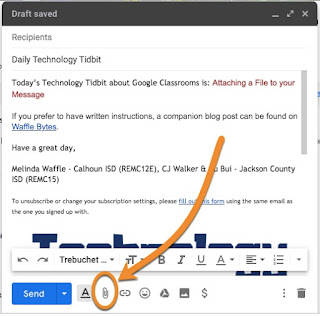
If you need to share a file that is located on your device with a person, you can attach the file via your email message.  Here are the steps to do this. Begin composing your email message.  When you are ready to attach a file (or multiple files), click on the paper clip icon at the bottom of the compose window The standards "open" window will pop up 1 - Select the file you want to attache, then 2 - click on Open 1 - The file will be added at the bottom of the message; if it is larger (or you are on a slow Internet connection) you may see a bar showing the attachment progression.  Once it is loaded the title of the attachment will convert into a hyperlink and an X will appear next to it on the right side. 2 - The attach icon will change to include a piece of paper around - this is an indicator that there is an attachment connected to your message (if you have a longer message and are not looking at the bottom this can be a useful You can attach multiple...

Google Mail - Adding a Hyperlink

Image
You may want to add a hyperlink to your email for your recipients.  This is very easy to do when creating your message. (Here is the short video for this topic: Adding a Hyperlink .) When composing your message, 1 - highlight the text you wish to link and then 2 - click on the link icon in the bar at the bottom Or you can use a shortcut by pressing Control + K The hyperlink window will appear.  1 - this is the text that will be linked; if you didn't highlight text, this will be blank and you can type in the text which should appear in the email message. 2 - this is where you put the URL (link) you wish to direct them to This will create the hyperlink in the body of your email message so people can directly go to the linked page Thank you for joining us for this episode of Technology Tidbits, brought to you by Melinda Waffle (Calhoun Intermediate School District), and CJ Walker and Du Bui (Jackson County Intermediate School District)

Google Mail - Composing a New Message & Setting Recipients

Image
When you are composing email, you have several options when selecting how to send the message to recipients.  There is a different reason for using each option.  Let's explore them. (Here is the short video for this topic: Comping & Recipient Options .) First, to compose a new message you can either click on the Compose button Or you can use a shortcut by pressing the C key Either one will open up the Compose window where you create your email message. At the top you set the recipients of your email.  This is where you have three options- 1 - TO: this is the standard recipient type, and is used the most.  Email addresses are entered for each recipient that you want to receive the email 2 - CC: this stands for Carbon Copy.  CC is used if there is a person (or are people) you want to share the email with to keep them informed, but they are really not the primary person you are communicating with. 3 - BCC: this stands for Blind Carbon Cop...