Posts

Showing posts with the label setup

Google Calendar - Duplicating an Event

Image
Sometimes you end up with multiple events that have the same setup - the same people, same rooms, same times, etc.  But it may be that setting recurring events just doesn't make sense.  When this happens you need to duplicate the event instead.  Here's how: Open up the event to duplicate.  Go to More Actions and select Duplicate Change the date to the additional date: Save

Google Sites - Adding an Announcements Page

Image
Google has several different page templates.  The Web page is the default as that is the one most commonly used.  There are other ways to display your content on a Google site using the other page templates.  One of the templates Google has built in you can use like a blog site within your larger website - it's called the Announcements page.  There are a variety of ways you can use this type of page.  Here are a few: you can post the current day's notes you could blog about class activities and, of course, you can always use it for announcements Here is how you setup an Announcements page: 1. Add a new page to your site: 2. Give the page a name 3. Click on the dropdown under the "select a template to use"  and choose Announcements 4. Choose where your page is located and then hit the red Create button 5.  Your new announcements page is set up and ready for you to create your first post on it. One thing that is very different...

iPads in Education - Connecting Meraki to Apple Deployment

Image
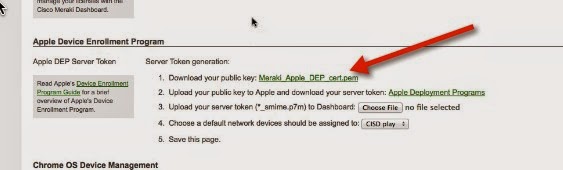
Here are the steps to connect Meraki to the Apple Deployment site. (Prerequisites for this activity: Your district already enrolled in Apple Deployment Your Meraki server initially setup) Start in Meraki -  Go to the side - click on MDM setting under Organization Scroll down the area headed Apple Device Enrollment Program Click to download the Public Key  Go to the Apple Deployment website ( http://deploy.apple.com ) Click on Manage Servers under Device Enrollment Program  Click on the server you added for Meraki. (You will need to Add MDM Server if you have not previously added the server.) Under Server Details, click on Add Key  Find and select the key you downloaded A server token will show up - click to download & save that Click Done Go back to Meraki -  Click on Choose File to upload your server token Make sure to Save Changes at the bottom of the page Here is a video if you prefer that format:  ...

iPads in Education - MDM with Meraki Overview

Image
Here is a graphical overview of setting up for iOS device management with Meraki - Some lessons learned- This process is not linear! You have to touch every iOS device You must log into an Apple ID on every device Some settings conflict - figuring out what can be time consuming BETA is...well...BETA - expect some glitches Note - this is just all the setup!  It doesn't get you into the management of apps at all, just through the steps of getting your devices listed and managed in Meraki. Over the next couple weeks I'll be adding video support for each of the steps via YouTube.  They will also be added to iTunesU under Michigan's MI Learning, with a few companion documents.