Posts

Showing posts with the label hyperlinks

Google Mail - Adding a Hyperlink

Image
You may want to add a hyperlink to your email for your recipients.  This is very easy to do when creating your message. (Here is the short video for this topic: Adding a Hyperlink .) When composing your message, 1 - highlight the text you wish to link and then 2 - click on the link icon in the bar at the bottom Or you can use a shortcut by pressing Control + K The hyperlink window will appear.  1 - this is the text that will be linked; if you didn't highlight text, this will be blank and you can type in the text which should appear in the email message. 2 - this is where you put the URL (link) you wish to direct them to This will create the hyperlink in the body of your email message so people can directly go to the linked page Thank you for joining us for this episode of Technology Tidbits, brought to you by Melinda Waffle (Calhoun Intermediate School District), and CJ Walker and Du Bui (Jackson County Intermediate School District)
Google Calendar - How to Share Your Calendar Via Link

Image
Google Calendar provides a couple ways you can share your calendar.  The first way you will see below provides a link that lets another person subscribe to your calendar.  They will need to be logged into their Google account, and it will display YOUR calendar along with their own. (Personally, I find this method the best for adding my kids' and husband's events so I see our families events all in one calendar.)  The second method displays your calendar in a browser window.  This is probably the preferred Teacher method for sharing with parents. (Here is a video on How to Share Your Calendar Via a Link .) When in your Google Calendar: Click on the Options menu (stacked dots) for the calendar you want to share - Select Settings and sharing - Click on Access permissions on the left side - Click on the Get shareable link - Note that who can see the calendar with this link depends on the access permissions you have set right above.  For example...

Google Sites - Add Custom Links to Navigation

Image
There is a new feature in Google Sites that is going to make a lot of people happy!  You can now add custom links into the navigation.  You want a link to your SIS?  You can do it at the top level now! Now, when looking at the Pages window, instead of a "New page" icon, there is a plus sign:  Hovering your mouse over that + will pop up (currently) two options to choose from, the "New page" icon and a new "New link" icon:  Selecting the "New link" icon, you will get a pop-up window where you can give the website you wish to link to a name and copy in the URL.  When linking, note that you can also select an existing page on your site (which will allow you to order the pages in the navigation menu differently, or even have a page linked in two places in the menu).  You also have the choice of whether it opens in a new tab, or over top of the website itself: You can then grab, drag and move the link as a main level or sub-level to any o...

Google Sheets - Adding a Hyperlink

Image
(Part of my administrative assistant series on Google Sheets.) A question that came up during one of these Google Sheets webinars was how to have a hyperlink in a Google Sheet.  More specifically, how to have "normal" text hyperlinked in a cell instead of having the URL what is visible in a cell.  This actually can be taken care of with the HYPERLINK formula. HYPERLINK Adds an active hyperlink to provided text (or data) within the cell. Example: =HYPERLINK("http://www.google.com","Google") Here is an example of it -

Google Calendar/Email - Email Source in Calendar Event

Image
In a prior post (from 2 years ago!), I shared how you can add an event to your calendar from email . Today I noticed a nifty little change in a calendar event that I had added this way.  It now has a Source link that links back to the the originating email the date was in.  I don't know how long it has been there, but it sure is a nice piece of information to have!

Google Sites - Adding Hyperlinks to Your Pages

Image
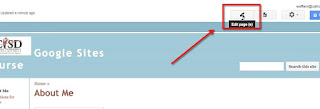
Adding hyperlinks to your website is the best way to connect to additional content without cluttering up your page.  There are two different ways we will look to hyper link here. First, before you begin, you need to make sure your page is in Edit mode.  If it isn't, click the pencil to put it in Edit mode so you have the formatting toolbar.   Once in editing mode, highlight the text you want the hyperlink connected to.  (It does make your page cleaner and easier to read if you link text rather than putting the URLs within the text of your page.)   The first way you can hyperlink is between pages within your site.  In Google Sites, this is the default it displays in the linking pop-up.  To link to another page on your site, you can either type it in the search bar OR you can click through your pages in the list provided to find it:   Once you select it, you would click ok and the hyperlink will form between the current pa...