Posts

Showing posts with the label website

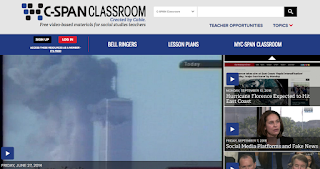
Website Resource - C-Span Classroom
Image
This find is for Social Studies teachers -  In addition to access to the programming, teachers can find "bell ringers," lesson plans and opportunities for professional development. From the website: C-SPAN Classroom is a free membership service for social studies teachers. Our mission is to enhance the teaching of social studies through C-SPAN's primary source programming and websites. ...To better serve you, our site is password-protected, yet remains free of charge. Membership gives educators access to their own library to store C-SPAN Classroom video clips, supplementary materials such as lesson plans and handouts, and special offers.

Google Sites - New Button Option

Image
Another nice addition to the new version of Google Sites!  You can now easily add a simple button that is easy to edit and moveable on your page.  No more going to another site and creating a custom image of a button to upload! To add a button, look for it in the bottom section of items to insert - from this picture below you can see how it is a new option above the Divider: Put in the text you would like displayed in the button in "Name" then paste in the link (or select a page from your site) for the button to link to: It will add the button in a new section at the bottom of your page: You can move the button to a new location simply by dragging and dropping:

Google Sites - Duplicate a Site

Image
You now have the ability to duplicate a Google Site!  Most exciting part of this for schools, this means you can create building or district page templates which can then be duplicated by others (or duplicated by you and the copy shared with others) to keep a consistent theme over multiple sites in your domain.  The addition of Duplicate site is now available in the More menu - When you select to Duplicate a site, you will get a window that: lets you rename it,  save it in a different folder than the original site allows you to copy the share settings (or not)  After clicking OK - it will give a message of Copying... on the window.  Depending on the size of the site you are duplicating, this may be there several minutes - When the duplicate site is created, a message appears at the bottom of the current site  asking if you want to open the copy.  (I note this as you DO NOT want to make changes on the site that is visible as that...

Google Sites - Add a FavIcon

Image
With Google Sites, you can edit the FavIcon that appears in the tab of your website.  This is a pretty easy couple steps to help make your site more identifiable. 1. Go to the More Menu and select Edit favicon- 2. In the window that appears, either select to Upload (from your computer/device) or Select the icon (from your G Drive or a Search) - 3. Find the graphic you would like to use - 4. Select the graphic - 5. Preview it - you can trash it and start over if you don't like it - 6.  The next time you publish your site, the icon will change from the Google Sites icon to your selected icon -

Google Sites - Add Custom Links to Navigation

Image
There is a new feature in Google Sites that is going to make a lot of people happy!  You can now add custom links into the navigation.  You want a link to your SIS?  You can do it at the top level now! Now, when looking at the Pages window, instead of a "New page" icon, there is a plus sign:  Hovering your mouse over that + will pop up (currently) two options to choose from, the "New page" icon and a new "New link" icon:  Selecting the "New link" icon, you will get a pop-up window where you can give the website you wish to link to a name and copy in the URL.  When linking, note that you can also select an existing page on your site (which will allow you to order the pages in the navigation menu differently, or even have a page linked in two places in the menu).  You also have the choice of whether it opens in a new tab, or over top of the website itself: You can then grab, drag and move the link as a main level or sub-level to any o...

Google Sites - Limit Who Sees Published Site

Image
The "new" Google Sites has another new setting.  When deciding who can view your site, you now have more options than just the standard "Anyone" and "Everyone in my organization" - a huge improvement if you are trying to find ways to share data to a limited number of people.  This feature has been available when you create a new site; as of today, I could also use this setting on an existing site (created with the "New" Google Sites of course). When you have existing site, you need to change this in the following way. 1. Click on the Share icon (silhouette with plus), like you would when adding an editor to your site - 2. Look for the new option of "Published" which will let you control who views your site.  Click on the Change... at the end of the line - 3.  Select "Specific people can view when published" - 4. Type in the name of the person or group you want to be able to view the site -  5.  Cha...

Useful Site Flashback - United State Drought Monitor

Image
The United States Drought Monitor site tracks drought status throughout the United States.  In addition to the current map, there are additional maps - even an animated map to see changes over time.   (Part of the Useful Site Flashback series - sometimes we forget about the good websites out there!)

Resource Find - WKAR's Curious Crew Shows & Resources

Image
This week I just found out about WKAR's Curious Crew TV shows .  If you teach science at the lower level - or have a kid that is curious - these shows are worth checking out.  From the site: "Inquisitive kids take a hands-on approach to investigating principles of science, technology, engineering and math (STEM) with award-winning educator Rob Stephenson." The show has several kids that test & learn about different science principals using household items.  In addition to the shows (which can be streamed on the site, or watched on live TV), there are "Curiosity Guides" that teachers (or even parents) can use to recreate or explore what is seen on the show further.   Check it out!

Online Game - The Tessera (ARG)

Image
If you want to give your students a moderated experience in an alternate reality game, you should check out The Tessera . From the creators' Educator's Guide : "Tessera: Light in the Dark is an online game where players use real world media and skills to interact with the fictional world of the Tessera, working together to unravel the mystery of a haunted Victorian-era tavern." The focus of the game is on students learning about and using computational thinking.  It has been tied to the Next Generation Science Standards, and easily fits into the STEM/STEAM curriculum.  While there is a live game happening from January to March/April, they are designing a version that is more adapted to the classroom -  "The replayable version will have around 10 sessions or modules that include lesson plans/activities, each of which can be accomplished in approximately 30 minutes. Players will be able to explore the website and related materials above and beyond this a...

FREE Webinar - REMC Save on How to Save

Image
Free webinars offered on September 28 , 2016 at 10:00 am OR 2:00 pm   Register NOW for this LIVE event to learn how to find ALL products fast & stretch your schools dollars by using the REMC SAVE Bid Project. Registration:  10:00 am session: http://goo.gl/YP51Kl 2:00 pm session: http://goo.gl/wyb0am Each attendee will be entered to WIN 1 of 2 Gift certificates from School Specialty and Office Depot for a REMC SAVE Bid project item. For regions who attend as a team, attendee lists must be emailed to remcbids@remc.org to be entered for a gift certificate prize drawing.  

NGSS - Bundling the Next Generation Science Standards Resources

Image
Those of you that need to teach science should know of this website if you do not.  Lots of good resources for you.  This page gives resources for bundling the NGSS - it provides a video example, webinar about bundling and example bundles that teachers can take, modify and build upon. 

Google Sites - The Proper Way to Change Fonts & Colors

Image
Whenever you are working with a website, there is definitely a better way to make formatting changes that involve fonts & colors.  And this way does NOT involve using the little icons on the formatting toolbar - which is the obvious way since it is there visible when you are editing your pages! The proper way is to make those changes so they will set them for the entire site.  With Google Sites, it means making them in the Manage Site area.  When in the Manage Site screen, in the menu on the left is the option Themes, Colors and Fonts - this is what you want to select. Once there, you will see the following: Here's what all these areas are: Theme - you can see which theme you currently have selected, and change to another theme Page Areas - you can select which area of the page you would like to modify Page Parts - this list the various parts/options that can be changed Format - this shows the formatting that you can modify Preview - a preview windo...

Twuffer - An Online Way to Schedule Tweets

Image
Recently I was looking for a way to schedule tweets for my work Twitter account without using an application (such as TweetDeck).  I was on a device that was not my own, and had a need for this.  Enter twuffer - I stumbled across this (ok - really got it as a result of a Google search), and after exploring it found it to be the near-perfect tool for the job. To use twuffer , you first need to sign in using your Twitter account - if you are already logged into Twitter, simply clicking on the box will do it as it uses Twitter's API Then you need to authorize twuffer for use with your Twitter account- The first time you authorized it, you will need to establish 1 setting - your timezone.  That's it for setup!  It is now ready to use.  Just 1. enter your tweet, 2. set the date you want it to go out, 3. set the time, and 4. click Schedule Tweet.  That's it! It keeps a nice list of scheduled tweets, set tweets and failed tweets you can refer...