Posts

Showing posts with the label emails

Google Mail - Assigning/Deleting Labels

Image
Once you have an understanding of labels , using them makes more sense.  Here is how to assign & delete them as you want. To add a label to an email, either when looking at your email list OR inside the email itself, you can click on the label icon at the top of the window - When you click on it, you will see (1) a list of your existing emails.  You will also see (2) where you can create a new label on the spot - Because these are labels (NOT folders), you can assign as many as you would like.  Once you have selected all the labels you wish to assign the email, click on Apply - The email will now appear with the label next to the subject line - If you do not want the email to stay in your Inbox, you can select the "folder" icon next to the label icon.  This will allow you to assign one or more labels to the email, AND at the same time remove the Inbox label so it no longer shows up in your Inbox -  The list of labels should look fami...
Google Mail - Adding a Person to Your Email Contacts

Image
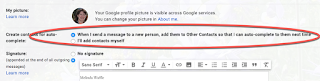
There are 2 ways to have people you email (or that email you) added to your email contacts list.  If you wish for contacts to automatically be added,  you can go into your Google Mail settings and under General, find this option down the page just above the Signature area - If you prefer to add them manually, when in an email of someone you wish to add to your contacts, click on the More menu (stacked 3 dots) on the right side of the email -  Select to Add the person to Contacts list - the 5th item down the menu - That's it!  Going forward that person's email will show up as part of an auto-fill when typing their name.

Google Mail - Create an Event from an Email

Image
(Reposting) There are many time I get an email that I want to make into an event on my calendar - both to make sure I block out the time, and to move the information out of an email in my inbox into the event. There is a feature called "Create event" that let's you do this - it is available in the More options when you are viewing the message. Once you select create event, Google opens up a new window, loads your calendar, and creates an event with the message subject as the name of the event, and the body of the message as the description within the event: You are then able to edit the date/time and other information as needed to finish creating the event. One caveat...it adds everyone that was part of the message to the Guest list (see above in red box), so unless you want it to be a group event you will need to click the x next to everyone's name but yours.

Google Mail - Add Email to Task List

Image
If you use the tasks list to help keep track of what you need to do, making a task from an email is an easy "task" to do.  Here is how to add an email to your task list. When in the email, you can either -go to the More Menu (3 stacked dots) at the top above the email and select Add to Tasks OR -use the keyboard shortcut of Shift + t Either method will automatically create a task. This will open up your task list on the right side of you screen: When you mouse over the task it created, you will see an pencil that can be clicked on to edit the task: When editing, you can edit/see all the following: The title of the task Details you want to add to the task Which task list it is part of Date/time of task (will add to calendar) Subtasks Direct link to the email used to create the task - so you can reference it

Google Mail - Marking Email as Read or Unread

Image
There are many ways to mark emails as read or unread.  (Q: What is the difference between read or unread emails?  Unread emails are bolded so they stand out.)  You can use any of these methods to change the state of any email. If you have the "Hover" turned on in your settings, when you hover over an email that is in the main window some icons appear to the right side.  The third icon will change the state of the email - closed envelope to change to unread: Or open envelope to change to read: At any time, if you check next to one or more emails (if mass changing them) you can go to the top More menu (3 stacked dots) and change from the current state to unread or read: When inside a message you can click on the More menu (3 stacked dots) found on the upper right side of the email underneath the print icon to change it between read and unread: Finally, you can use the following keyboard shortcuts:

Google Mail - Understanding & Creating Labels

Image
One of the hardest concepts when transitioning people to Google Mail from a software-based email application is the idea that all mail is "in" one location.  In thinking of email in a traditional sense (like snail mail), we think of sorting it "to" locations.  It is in the inbox, in the trash, in a folder, etc. When using Google Mail in the web, all your mail is in one location (I think of it as being a junk room full of my email).  Instead of organizing the emails "into" folders, we actually are tagging emails to make them easier to find (think of it as putting stickie notes on them).  This gives us great flexibility as emails can have multiple stickie notes on them - and I do not have to remember "where" I put them!  An example - an email in my inbox has a tag of "unread" (which makes it bold) and Inbox (so it appears when I click on Inbox). This brings us to labels - these are the tags we want to create and assign to our emails. ...

Google Mail - Print Email

Image
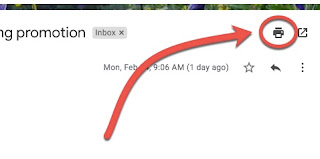
If you need to either print your email, or save it as a PDF, there are several ways to accomplish this. When viewing the email, you can either click on the printer icon in the upper right:  Or you can click on the More menu (3 stacked dots) and select Print there: Or you can use the shortcut: Using any of those methods, it will open a print preview window: You can: Change which printer is selected Select which pages to print Select the number of copies Change the layout (portrait vs landscape) Display more settings When you click on the Destination (which printer), you have options to save the email as a PDF or to Google Drive as well: Under the More settings, you can adjust other settings, including scaling the document and turning on/off headers & footers: Once done, clicking print will print the document with your preferred settings (or save it to PDF or Google Drive).

Google Mail - Advanced Searching

Image
...otherwise known as finding what you want when you want it. (Updated at 8:58 am EST - less than 20 minutes after it was posted!  There is a change with the suggestions made during searching now that should show up for you soon if they don't yet. The addition is in a rust red color below. ) The number 1 biggest frustration expressed to me with Google Mail is finding an email.  There is a solution for this - the advanced search available that is hidden behind the little down arrow at the right end of the search bar: If you click on that, you get this pop-up window - Put the information you know in the appropriate places (in my example, I'm looking for an email from my husband, received during the 2015-2016 school year about evaluations but I don't know what the subject line was) - THEN run your search, and you should see better results (in my example, here is the email I was looking for) - The following field are what you can search: From: the em...

Google Mail - Saving & Finding Drafts

Image
Sometimes when people discover their Draft label, they realize they have a LOT of drafts saved.  Here's a quick overview of how drafts work in Google Mail. When you are creating an email, it is auto-saved periodically.  You can note this as at the top of the email in the title bar it will say "Draft Saved" periodically instead of the subject of the email. These emails are tagged with "Draft" so can be found by clicking on the Drafts label on the left side (which remember - is actually a quick-search...) To save an email you are working on as a draft, click on the X in the upper right corner.  (Note that it says Save and Close when mousing over it.) You can see how it is easy to inadvertently end up with many drafts if closing an unwanted email instead of deleting it (trash can at the bottom).  However, once you know this, it is convenient to quickly start an email you want to complete later and not clutter up your screen with open compose windows. ...

Google Mail - Hover Actions

Image
Today's topic - "cleaning up the inbox got easily with Hover Actions".  OR, if you prefer - "how to turn off those icons that keep showing up when my mouse moves over my email." The Hover Actions put common actions a single click away from each email when viewing email in the list.  These are good solution, especially if you are not using the shortcuts for them To use the Hover Actions, simply move the mouse over the email you want to interact with.  You will notice that some icons pop up on the left side in the window - You can quickly do the following actions from this menu: Archive the email Trash the email Change it from being read to unread, or from being unread to read Snooze the email You can turn the Hover Actions on/off.  Go to your email Settings (found under the gear) - Under General, about half way down the page the Hover Actions feature is listed.  Turn it off or on here -