Posts

Showing posts with the label quiz

Google Script - Create a Multiple Choice Quiz from Questions in a Spreadsheet
Image
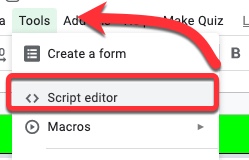
Recently I was asked if there was a way to create a multiple choice quiz from a spreadsheet which had the questions and answers already in it.  A colleague (thank you Andy Mann !) found a script created by Jason Jurotich which we were able to simplify and adapt for our own purposes with the  REMC project  21Things4Students .  Our modified script creates a Google Form multiple choice quiz from the active sheet (the one you are currently looking at) in a Google Spreadsheet.  If you have multiple sheets with questions (say 1 sheet for each chapter), you can create a new quiz just by running the script again on a different sheet!  Below is how to add the script, what it does, and what you may want to modify -   Adding the script 1. First, while in the spreadsheet you are going to use (whether the questions are set up or not), go to the Tools Menu - Script Editor 2. Delete out the code that is there. Copy and paste in the script found in the document...

Google Classroom - Add a Quiz Assignment

Image
The Quiz assignment is a bit different than other items in Classroom.  It actually creates a new form that is created from a template that has the quiz features of a form turned on and setup.  What is nice about using this instead of providing a link to a form from Classroom: you can use a locked mode (if students are using Chromebooks managed by your domain), the results of the "quiz" can be loaded back into Classroom, and the Quiz settings are already turned on for you within the form.  All of these help save time, and keep your students where they should be :) To create a Quiz Assignment in the Classwork area: Within the Classroom, click Classwork at the top - Click on the Create button - Select Quiz assignment - This will bring up the window that is similar to other types of items you might add.  There are a few differences - 1. You can use a locked mode if students are using Chromebooks are managed by your domain 2. You can choose to impo...

Website Find: Quizizz

Image
Cannot take credit for this find - heard about it at the Michigan Digital Learning Conference during +Leslie Fisher 's keynote.  Quizizz ( @quizizz ) Now that I've played a bit with it, I can recommend it as a very versatile and easy-to-use quizzing type site.  I say quizzing type site, because you can use it as a flash card type site (think Quizlet) or a class compete type site (think Kahoot) and probably a couple other ways I haven't thought of yet - but I'm sure others have. And, best part, it's FREE. You have the ability to create your own quizzes, or use some that are already created.  If creating your own, the interface is drag and drop - and you can even add questions from other quizzes into your new one! When running your "game," you have several options to toggle on or off to customize it to your teaching goal or your students learning style.  Don't want a leaderboard?  Turn it off!  No time?  No problem! (Quite frankly, not being a...

Google Forms - Randomize Your Form Questions

Image
Google Forms has been getting a little Google love.  Some of you have been asking about them, so I thought I would make sure to cover some that you might find useful. A quick down & dirty one that teachers have been requesting for a long time has been added to the top of your form options - ability to randomize your form questions. Now you can have your questions in a random order so that when giving it to a classroom of students all at the same time you can decrease the odds of them giving collaborative answers.  Note that if you use pages to organize your questions, the questions are shuffled on each page.  And, this is an all or nothing features - you cannot choose which pages of your form (quiz) are shuffled and which aren't.  Why do I bring that up?  Two examples - if you ask for student identifiers they would each need to be the only question on a page to keep it from being shuffled with other questions if you provide a graphic which is follo...

Moodle 2 for Teachers & Admin - Drag & Drop into Text Question Type

Image
  Unbeknownst to many, there are various question types that can be added to Moodle to make quizzes more flexible - and more like some of the question types students may see elsewhere (read that - national testing...).  I'm going to demonstrate various question types over the next several weeks. Open University has created a whole host of question types.  Today we are looking at the "Drag and Drop Into Text" question.   Here is a video overview of how to set it up and use it: (This question types working on Moodle 2.1 forward; I am showing it running on Moodle 2.4. This addition must be added to your Moodle server by a Moodle Administrator.) Moodle Plugins - Drag & Drop into Text   Drag & Drop into Text   Documentation