Posts

Showing posts with the label files

Google Mail - Attach Files to your Email
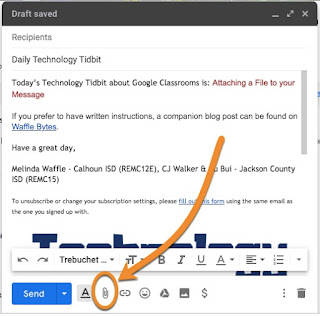
Image
If you need to share a file that is located on your device with a person, you can attach the file via your email message.  Here are the steps to do this. Begin composing your email message.  When you are ready to attach a file (or multiple files), click on the paper clip icon at the bottom of the compose window The standards "open" window will pop up 1 - Select the file you want to attache, then 2 - click on Open 1 - The file will be added at the bottom of the message; if it is larger (or you are on a slow Internet connection) you may see a bar showing the attachment progression.  Once it is loaded the title of the attachment will convert into a hyperlink and an X will appear next to it on the right side. 2 - The attach icon will change to include a piece of paper around - this is an indicator that there is an attachment connected to your message (if you have a longer message and are not looking at the bottom this can be a useful You can attach multiple...

Google Classroom - How to Find Assignments in G Drive

Image
Once students have turned in coursework that is not collaborative (ie. attachments, copied template documents, etc), you can access them in a G Drive Folder that is specific for that assignment if wanted.   (There are multiple ways to get to this - this is just one.) When in Classroom, first click on the Classwork tab at the top Click on the assignment you want to access - Once the assignment detail shows, click on View Assignment - Look for a folder icon on the left window, below the notifications about numbers turned in - It will open another tab with your Google Drive, and take you into the folder created for that assignment - you will notice the folder name matches the assignment making it also easy to find as a search of Drive -

Google Classroom - How to Submit an Attachment

Image
You will get an email notification when there is a new assignment in the course.  When there is a new assignment you may have to submit documents as attachments. When this occurs you are able to submit multiple files if needed. To do this use the steps below. Click on the “assignment” for the item you are submitting - In the new window, look for the following: Area where templates might be shared for you to fill out The paper clip icon and word Add - this is what you click to add your submission Area to add private comments - these only go to the course instructors MARK AS DONE button - this will notify the course instructors When you click on Add, select File - Click on Select files from your computer - Find the document you wish to add, click on it, then click Open - 1 - That document will be displayed as being ready to insert and 2 - you will have the ability to add other documents if you need to submit more than one. Once ...

Google Drive - Transferring Ownership of Documents

Image
Today I asked about transferring ownership of documents in G Drive.  There are five ways I know of to change ownership of files. It occurred to me I should share here in case others are asked (or wonder) about this also! I've outlined them below, because some will depend on G Suite administrators being involved, and some depend on the number of files to be moved. Here the ways: Copying the file - done by you (or currently user) by going to the File menu on a file you have edit rights to, and creating a copy (what you are currently doing)  This by far the most tedious if it involves more than a couple files.  It actually makes multiple copies of the file, each with its own ownership.  The best use of this method is for when a document is wanted by another person, but the creator also still needs the file. Switching ownership - the   current owner   of the file goes into the share settings and changes the access right of another editor to own...

Google Takeout - Transfer Files

Image
You may have students that are graduating this spring and want to move files/emails from their school Google accounts to a personal Google account.  Is this possible?  Yes, it is!  Google has made this much easier over the years. Note:  when you do this it actually COPIES the files into your personal account - three things about this: all sharing is broken in these new copies that are made original documents are still shared with same people as before (if shared) ownership of original documents stays with organization; ownership of copies are with your personal account If you want a video, check out this one by Just Cowen of Dickinson-Iron Intermediate School District in Kingsford, MI (that would be way up in the UP :-) Or, here are a few directions with screenshots: 1. Log into the Google account that has the files you want to transfer, then go to takeout.google.com/transfer 2. For step 1, enter the personal Google account you are moving the files to...

Getting File Uploads in Your Google Form

Image
You may have noticed a new option available in the question options list when creating a Google Form - it is the ability to have participants submit files! If you haven't seen it (or want a rundown of how it works) - keep reading...it's a pretty cool feature! First- you will find it as a question type listed between "dropdown" and "linear scale"-  It creates a question that looks like this: There are several options you have for the setup.  First - the maximum number of files that can be uploaded: Second - the size of the files: Third - the different types of files allowed:  If you click on this option, you can uncheck the "Allow all files" to select only the file types you want:  You just have to select at minimum 1 type, then hit Apply: This is what the end user sees when filling out the form: Once they click Add File and select the file(s) to add, it will list them for review (and removal if necessary with the ...

Google Drive - Deduplication of files

Image
This is HUGE for those of you that either weren't quite ready to move to Google Apps yet, or that needed to use programs outside the scope of what the Google Drive apps could provide. Previously, if you uploaded a file from your computer, made a change to the original on your computer, and re-uploaded the updated file you ended up with two (or more) of the same file.  You probably needed to look at the dates associated with it to know which was the newest version - and if it got copied over as a Google document, you had the possibility of lost changes. Now, from Google - "Once launched, when users upload files that have the same filename as an existing file, they’ll be deduplicated, and the old file will be in revision history. This is so that if any mistakes are made, users can get back to the previous version. Similarly, uploaded folders will be merged with folders of the same name." Here's the message that appears when you begin using this -   You do...

Google Drive - One File, Multiple Places

Image
Because Google functions with labels instead of actual folders, any file can have multiple labels attached to it.  This is very powerful in keeping my Drive cleaned up, I find, as it means that I can maintain one copy of a file but still have it shared with multiple groups of people that are separate from each other.  Here is how you do it.  When in your Drive, highlight the file or folder on the right and then hit the Shift + Z keys.  A pop up will appear - very similar to the "Move to" pop up, but you may notice it says "Add here" instead: Then you can double-click on your My Drive to display the folders inside, and continue clicking through until you find the folder you also want the file to be displayed in.  When that folder is highlighted, clicking on Add here will also display it in that folder (in addition to where it is currently).  A couple points with this: The file will combine the share settings of all folders it is in.  So if each...