Posts

Showing posts with the label data

Google Script: Sending an Approval Email from Form/Spreadsheet Data
Image
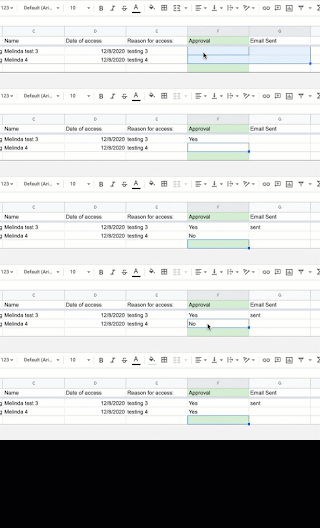
I was asked to create a script that would send an approval email once a request was approved - for 2 separate groups, and to be used for 2 different reasons!  The example below is being used for building access approval (RE: the work-at-home requirements due to COVID-19).  The other way this was used was for approval of spending requests.  These utilize an additional column that is marked (in these cases) with a Yes that will trigger the email, then if an email is sent it makes that notation in the final column.  Note - the script will break (stop running) if someone submits a non-working email from a form, so I recommend having the form auto-collect the email. Here are the directions for using the script -  Creating and Sending the Email 1. Create the spreadsheet  You can either do this with a New Spreadsheet, adding the data fields you want  OR Create a form with the data you are collecting and have it create the companion spreadsheet Important :...

Technology Tidbit - Get Outside!

(Part of our Stay-At-Home series focused on practical ways you can use a resource to foster creativity, connections, and collaboration.) Parents - There is a growing body of research that shows being outside in nature can have positive benefits for our mental well-being.  With what we are dealing with currently, I think we all can use activities that are good for our mental health. Go for a walk There are many activities that you can do while walking.  Here are some suggestions to make it an learning adventure: Make Observations Have kids share or journal what they experienced with their senses during the walk.  For instance, today I saw  our mating crane pair was back from the south, I felt  my face warm on one side from the sun and cool on the other from the wind, I heard  the frogs that have returned to the creek.  You could even showcase a sense a day! Observe the clouds, the weather, wildlife, insects, amount/types of traffic Look for...

US Census Bureau History Archives

Image
US Census Bureau Site - 10/2019 article about the 1929 Stock Market Crash The US Census Bureau has a History area where a monthly article is published, sharing a historical event along with interesting facts, economic impact, and other tidbits - all using census data and records.  They provide an archive where you can find past articles:

US Census Bureau's Statistics in Schools

Image
Teachers - check out the US Census Bureau's Statistics in School (SIS) .  A plethora of resources for you - and since it is a .gov site, they are public domain (free to use). Find Activities and Resources A variety of activities searchable by either curriculum area or grade level are provided free on the site.  New activities have been added designed specifically for the 2020 Census.  You and your students can also find: Maps, Data Access Tools, Historical Documents and Images, Constitution Day resources and more.   Seeking Ambassadors Apply to be a teacher ambassador by October 24. Making sure ALL children are counted is especially important for education. 2020 Census responses will drive decisions on how more than $675 billion in federal funds will be distributed each year for the next 10 years to educational programs. The U.S. Census Bureau’s Statistics in Schools (SIS) is looking for ambassadors in all 50 states, D.C., Puerto Rico, American Samo...

Google Script - Making a Form Question from Spreadsheet Data

Image
This is totally a revisit of the post I did on made on October 31, 2016 about " Google Script - Create a Drop-Down List from Spreadsheet Column " I had another use for this today.  I wanted educators completing a form to fill in their district.  Yet the thought of all the different spelling/acronyms I might give was going to make the data analysis crazy.  For people from my organization alone in the first 5 minutes I got Calhoun ISD, Calhoun, Calhoun Intermediate School District, CISD.  Seriously. I remembered this script I used before to create a drop-down from a spreadsheet, and figured I could revamp it for use with a Multiple Choice item - one where people could input their district if it was not there yet using the 'other' option. Viola!  Here it is modified for a multiple choice - much is the same as before, but there are some differences. To do this yourself - 1.  Create your form.   Really important step.  Make sure to cre...

Google Sheets - Conditional Formatting

Image
(Part of my administrative assistant series on Google Sheets.) Conditional formatting is a great way to dynamically view your data, even while entering it.  Many people spend a lot of time highlighting data individually, not realizing that this feature is built in and can save a lot of time. Conditional formatting can be turned on by going to the Format menu and selecting it from about 3/4th of the way down - First you highlight the data you want to format.  You can click on an entire row or column, or even multiple rows & columns if you want to apply the same rule over a large amount of data. Second you click on Add new rule - There are several options that come up - The data range to which it should be applied (you can change it here manually if you did not highlight the correct data) The condition for formatting the cells - the list of your options is the next graphic below How you want those cells formatted You can even add multiple rules for the s...

Google Sheets - Basics of Data Entry

Image
(Part of my administrative assistant series on Google Sheets.) There are several tips that can help when doing data entry on Google Sheets. General Terminology : CELL - an individual location for data ROW - line of cells across the spreadsheet; denoted by a number COLUMN - line of cells down the spreadsheet; denoted by a letter CELL NAME - denoted by the column name and row name of the cell; example - the cell found by the intersection of row 4 and column b has a name of B4. Using your Keyboard: You can ditch the mouse/trackpad while doing quick data entry by keeping your fingers on the keyboard.  Use: TAB - to move across a row RETURN/ENTER - to move down a column You can also use the arrow keys if you have them on your keyboard.  Keep a leading ZERO: You can keep a leading ZERO (0) in a cell by first inserting an apostrophe - When you click on ENTER/RETURN/TAB, the apostrophe will not show but the ZERO will remain- Enter Line Brea...

Participate in the National SpeakUp Research Project

Image
Get your district registered today - Speak Up 2017 began on Monday! Let your voices be heard! From the site - Speak Up 2017 Opens Monday ! Speak Up is the research tool districts use to learn what students, educators, parents and the community have to say about education issues. This will be the 15th year Speak Up has supported education leaders in including the voices of their stakeholders in annual and long-term planning. Educators from more than 30,000 schools have used Speak Up data to create and implement their vision for the next generation of learning. You can too! Get registered ! Get started ! View & view the 2017 surveys today! Speak Up will be open for stakeholder participation from October 16, 2017 through January 19, 2018 . Data will be delivered to registered schools and districts in February 2018. If you have any questions, please let us know!

Google SItes - Embedding an Awesome Table View

Image
Awesome Table was an add-on that made sharing information from a spreadsheet very easy in the old Google Sites.  Guess what?  You are able to insert an Awesome Table in the New Google Sites! This is a dynamic way to share spreadsheet data - even data that changes often - and make it searchable for visitors to your website. Make your spreadsheet of data: Look like this on your website: Step 1: Set up your spreadsheet Here are their directions for setting up the spreadsheet: https://support.awesome-table. com/hc/en-us/sections/ 115000315609-Basic- configuration The basics - create your spreadsheet, making sure each column has a header at the top.  Add a second header row that sets up the filters and keywords - these tell Awesome Table how to display your spreadsheet. Step 2: Connect the Aweome Table service with your Google Account Once you set your spreadsheet up, you will need to log into this site with your Google Account: https://awesome-tabl...

Google Script - Create a Drop-Down List from Spreadsheet Column

Image
(Updated on 3/21/2017 - triggers have been moved!) ( I just created a new related post on how to create a multiple choice  question on the form that a bit simplified - takes the "other" answers in a multiple choice question on a form, and updates the multiple choice options with those as options.) I guess it was only a matter of time before I ended up dabbling with Google Scripts.  Today I was asked by a teacher how he could populate a drop-down list on his Google Form from data on a spreadsheet - and have it update as he changed the data.  Not finding an add-on for this (why recreate the wheel? :-)  I explored creating a script.  And...discovered that this task is not too hard! To do this yourself - 1. Create your form.   Really important step.  Make sure to create your drop-down item and give it a title, but you do not need to add any options to it (because later you will populate it from the spreadsheet). 2. Create the spreadsheet whe...

Google Forms - Add-on Doc Appender

Image
I have run across another add-on called docAppender that can be very useful for various situations where you are collecting information in a form, and want that information to end up on a specific document.  Below I walk through how to set it up, and after that list a few of the applications I have thought of for it.  I am sure there are many more, so feel free to add to the list with comments! 1. Set up or collect the documents you want to append the form information to into one folder.  Here I've created some simple sign-in sheets for a free activity hour in school. 2. Create your form, making sure to include fields for any data you want to append onto the documents (caveat #1 it has to be the same field(s) for every document).  My form is simple - I just want their name so a sign-up/in sheet is created as they pick their activity. 3.  Include a multiple choice, checkbox or drop down list question that will be used by the add-on to add the documents...