Posts

Showing posts with the label announcements

Google Classroom - Assign Items to Multiple Classrooms

Image
When adding material in Google Classroom, many people do not know that you are able to add that item to multiple Classrooms when you are creating it!   IN CLASSWORK: To add an item, such as an assignment or material, to multiple classes, when you are creating it look to the menu options on the right side under where it says "For" -  Click on that dropdown.  You will see a list of all your Classrooms with a checkbox next to each.  Check all the courses you want the item to be in -  After you are done, it will switch to tell you how many classes the item is going to be created in -  IN THE STREAM: when adding an announcement click on the dropdown under "For" -  Check all the classes you want the announcement in, then proceed as normal. That's all there is to saving time by creating items in multiple classes at one time. Thank you for joining us for this episode of Technology Tidbits, brought to you by Melinda Waffle (Calhoun Intermediate School Dist...
Google Classroom - Using the Stream for Announcements Only!

Image
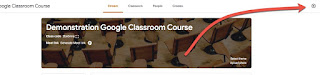
Organization is huge for Google Classroom - both for you and your students.  One key can be ONLY using the Stream for announcements.   (Here is the short video for this topic: Using Your Stream for Announcements .) Designating and setting up your stream as only being used for announcements keeps it "clean" and allows students to easily find past announcements - they are not buried among other notifications.  To do this, you will want to change 2 of your classroom settings. First, go to the G Classroom settings by clicking the Gear in the upper right corner Second, change the following 2 items shown in the box below -  1. Make the stream so students cannot add new posts by selecting either of the other 2 options (that students can only comment OR only the teacher can post and comment) 2. Hide all notifications of classwork from the stream This will simplify your stream so that only posts YOU (and any co-teachers) add show up.   Thank you for joining us ...

Google Sites - Creating an Announcements Page

Image
Google has several other built-in templates that can be useful beyond the Webpage template.  One that is very similar to putting a blog onto your website is the Announcements template.  This template essentially adds a blog-style page to your site, which has as subpages posts that you add from a button on the page and then posts snippets of  the newest items to the top of the main Announcements page. You can use this template multiple times, so naming convention can be a key to knowing what information gets posted on which page! To add and use an announcements page: 1. Click on the plus page icon to add a new page: 2. Fill out the information for your new page, including page name and where to store it.  Make sure to select Announcements for the template type! 3. Click Create to create the new page 4. The shell for your blog type page will have been created.  Note how it looks different than when you use the webpage template: ...

Google Sites - Adding an Announcements Page

Image
Google has several different page templates.  The Web page is the default as that is the one most commonly used.  There are other ways to display your content on a Google site using the other page templates.  One of the templates Google has built in you can use like a blog site within your larger website - it's called the Announcements page.  There are a variety of ways you can use this type of page.  Here are a few: you can post the current day's notes you could blog about class activities and, of course, you can always use it for announcements Here is how you setup an Announcements page: 1. Add a new page to your site: 2. Give the page a name 3. Click on the dropdown under the "select a template to use"  and choose Announcements 4. Choose where your page is located and then hit the red Create button 5.  Your new announcements page is set up and ready for you to create your first post on it. One thing that is very different...