Posts

Showing posts with the label Google sheets

Google Script - Create a Multiple Choice Quiz from Questions in a Spreadsheet
Image
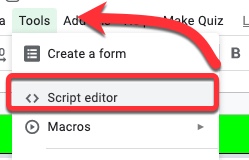
Recently I was asked if there was a way to create a multiple choice quiz from a spreadsheet which had the questions and answers already in it.  A colleague (thank you Andy Mann !) found a script created by Jason Jurotich which we were able to simplify and adapt for our own purposes with the  REMC project  21Things4Students .  Our modified script creates a Google Form multiple choice quiz from the active sheet (the one you are currently looking at) in a Google Spreadsheet.  If you have multiple sheets with questions (say 1 sheet for each chapter), you can create a new quiz just by running the script again on a different sheet!  Below is how to add the script, what it does, and what you may want to modify -   Adding the script 1. First, while in the spreadsheet you are going to use (whether the questions are set up or not), go to the Tools Menu - Script Editor 2. Delete out the code that is there. Copy and paste in the script found in the document...

Google Sheets - Separate Phone Numbers

Image
I had a first today - I was asked to prepare some data for an upload, and phone number was one of the fields.  Unfortunately, the numbers needed to be divided into area code, prefix, suffix and extension.  Ugh!  Add to that some phone numbers were all numbers, while others had periods, dashes and/or parenthesis in them.  So, I ended up using 2 methods to prepare it for a data upload.  In this post, we will first review using the LEFT & RIGHT functions - useful functions if you ever need to select just some of an entry.  Then we will revisit using the SPLIT function, along with this application of it.  LEFT & RIGHT functions This was the quick way to divide the phone numbers that had no punctuation or text entered with them.  First - the functions: LEFT - copies only the designated number of characters beginning on the left side of the entry RIGHT - copies only the designated number of characters beginning on the right side of t...

Google Script - Shade a Sheet Row based on Comparison of 2 data points

Image
I have a fairly large spreadsheet we use to track requests for record transfers.  I've discovered recently that some of our larger schools are starting to use it to create internal requests.  This is fine, except when I am skimming through to make sure nothing is being overlooked I end up spending time on these internal requests, when I can bypass them. Hence, a short little script that will compare 2 data points in a row, then shade the row a particular color if the comparison is true. What the Script Does: It compares the values from two different columns to see if the first one is part of the second one - in this specific case it is checking the sending district against the receiving district.  If it is, then the row containing this record is shaded. The Script Here is the script I created to accomplish this - function setRowColor() {     var sheet = SpreadsheetApp.getActiveSheet();     var range = sheet.getDataRange();   ...

Google Forms - Reuse the same spreadsheet when resetting a form

Image
Previously I have shared how to reset a form.  Thanks to a local principal (who happens to be my husband), I've learned there is another way to do this - and it will use the same spreadsheet you used originally, simply creating a new sheet for the new entries so you don't have MANY spreadsheets floating around with the data if you want to track it over time.  To reset the form, and continue using the same spreadsheet: In the form, click on RESPONSES, and click on the More menu (3 stacked dots) to select Unlink form -  When the warning comes up, click UNLINK - Go again to the More Menu, and this time select Delete all responses - When the warning comes up, click OK (remember, these responses were saved in the spreadsheet; you are only deleting them from the form itself) - Click on the More menu a third time, and select Select response destination - In the prompt window, select Select existing spreadsheet and then hit SELECT - Choose the spre...

Google Sheets - See a Cell's History

Image
You can now see the edit history for a single cell in Google Sheets!  There are several times I have needed to know how one cell was edited, and had to go through the entire workbook editing history to try and track it down.  This is a handy feature addition! To see a cell's history, right click on the cell, and select "Show edit history"  (it may even have a green box saying New next to it like mine...) - A window will pop up - it will show the latest change made to the cell - you can use the arrows to move through all edits made on the cell - Notice that the entries are timestamped, and tell who made the edit, in case you need that level of detail -

Google Script - Sync Google Calendar to Spreadsheet by Specific Date Range

Image
(This is m odified from Davepar’s project and examples at GitHub https://github.com/Davepar/gcalendarsync which can do a sync either direction.) I had a colleague ask if she could easily copy calendar events into a spreadsheet for a log. We discussed using the Agenda view in calendar, but she needed to do some calculations and data analysis with the information so a spreadsheet was the obvious landing place for the information. After finding (and previously using) Davepar's script to create Calendar events from a Sheet, it made sense to revisit it and break it down the other way. After doing that, it made sense to let the user input the desired date range on the spreadsheet. Here's the result: (Feel free to grab the Script if you want to make your own modifications- this one is an easy one with only 1 line of code to update.) Directions : Part 1 - Set Up the Calendar: Create a new Google Calendar (in the dropdown next to "My calendars" in the le...

Google Sheets - Template for a Senior Course Audit

Image
This week I presented at the Michigan School Counselors Association fall conference.  One of the sessions I co-led with CACC Counselor Terri Tchorzynski on being more efficient when using Google Apps.  One of the examples we provided was how a senior course audit template could be utilized in place of a paper-pencil audit (which a majority of counselors in our state still use...). Several thought this should be shared wider, but before I do I need to give a few caveats: Credit has to be given to @waffleta (yes, my husband) - he created the initial senior audit I started with, this is it refined and generalized...along with directions.   If this is something you find worthwhile, you may find out if your SIS can do something similar!  Many of them can, and you can save yourself even MORE time as the course catalog is already in there :-) Finally, if you need to add rows for additional courses, you will need to understand how to set up data validation that u...

Google Sheets - Print Only Selected Cells

Image
You should now have the ability to select exactly what you want to print, when printing from Google Sheets.  In addition to being able to print the "current sheet" or entire "workbook" (all sheets), you can now just print "selected cells." When on your sheet, highlight the cells you want to print.  Select to print it using the File Menu, print icon or control+P.  In the Print preview menu that appears to the right, click on the dropdown under Print - Pick option "Selected cells" from the choices - The print preview pane will change from displaying the entire current sheet to only displaying the selected cells you want to print so you can proof it to ensure you have the right information -

Google Sheets - Checkbox is Now Available!

Image
Today I noticed an addition to my Insert Menu while on a Google Sheet.  I now have the additional option of inserting a checkbox! I often use checkmarks in cells, preferring them to an "x" as it is an obvious symbol. (If you didn't know, you can add them with using Option + V) However, the checkboxes are a vast improvement over that. Here is the menu change (Old to New) - To add a checkbox into a selected cell, go to the Insert Menu and  select Checkbox - (By the way - Kudos to Google for adding that little "NEW" box to items that have just been added.  Now I don't need to guess - is it something I just never saw before?  Or is it new?... and the NEW disappeared after I used the feature.) It certainly would be tedious to have to do that individually for every cell.  There are 2 ways to mass add the checkbox. 1. Highlight the cells, THEN do your insert 2. Use the fill feature to add it to adjacent cells What is cool about this second feat...

Google Sheets - Session #5 Summary for Support Staff

Image
(Part of my administrative assistant series on Google Sheets.) Below is a summary of all the topics covered in Session #5 of the series I have been doing for support staff.  In this session we covered how to use filters to view needed data.  We also learned about and created filter views, so we could quickly grab data that is needed multiple times and keep the main spreadsheet with all viewable data.  Session 5 - Intermediate Formulas (December 13, 2017) How to Use Filters Filter Views

Google Sheets - Session #3 Summary for Support Staff

Image
(Part of my administrative assistant series on Google Sheets.) Below is a summary of all the topics covered in Session #3 of the series I have been doing for support staff.  This one covered several "intermediate" formulas available to use with Google Sheets.  We especially focused on formulas that would be useful to those school employees that would be working with large numbers of student data. Session 3 - Intermediate Formulas (November 29, 2017) Split Formula Concatenate Formula Count Formulas Hyperlink Formula