Posts

Showing posts with the label comments

Google Slides - Comment on an Object

Image
You have the ability to comment on an object within a slide in Google Slides, rather than just a general comment attached the the whole slide.  This can be very useful, especially on a collaborative presentation, where tasks need to be assigned or you have a question specific to that object.  There are 3 ways you can add a comment to an object. For all methods, first select the object (by clicking on it).  Then use one of these methods to add the comment - 1. Click on the comment icon 2. Right click on the object and select Comment from the pop-up menu 3. Go to the Insert Menu and select Comment Any of these methods will tie the comment to the object - as long as the object is selected first . You can tell that it is connected to the object as when you either mouse-over or click on the comment the object is then outlined in yellow. If you want to add a general comment to the slide, make sure that nothing on the slide is selected before adding your com...

Google Drive - Comment on non-GDrive files

Image
A new feature showed up in my Drive this week - the ability to comment on non-GDrive files!  This is a great new feature in making additional files collaborative in nature.  It will work with MS Office files, PDFs and images.  The document must be in preview mode for the feature to be available.  This is the previous view of options when in preview mode -  This is the new view for a files that has NOT been added to your Drive yet - And here is the new view for the files that HAVE been added to your Drive - When viewing the document, clicking on the comment icon, highlight the part or sentence you wish to comment on, then add your comment - Additionally there is a new setting option of Manage comment notifications - You can choose the conditions for which you would like to be notified of comments on this particular file -

Google Classroom - Viewing Student Work

Image
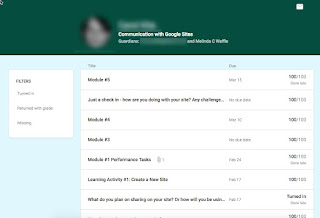
Google Classroom does a great job of managing Google Docs you want to use with your students.  It creates templates & copies for you (as needed), it creates collaborative docs.  It allows you to have them tied to assignments so they can be "turned in" to you, and you can even return them to be edited and resubmitted.  So much better than how we used to do it using just Google Drive! One of the struggles early on with Classroom has been the information about files/assignments turned in by students.  Were the late?  If they edited them, what edits did they make? What work have they done and what is still not turned in? This has gotten a huge boost in some of the newest updates.  Here are some features you probably want to know about: View work for 1 student : if you click on a student's name in the class student list, you can see all their assignments and grades.  You can also see if an assignment was done late.  (You can click on the ...

Google Classroom - How to Mute (and Unmute) Students

Image
Occasionally students make a poor choice in the comments they post in a Google Classroom class.  While you can easily delete the comments, you can also mute a student for a period of time to prevent them from doing it. There are 2 ways to do this.  Method 1 - from the class stream (single student) Click on the "more options" on the right of the student's comment: Select to Mute them.  The following window will appear, to let you know what this does. Also, you have the option to delete the comment you used at the same time you mute them:  Method 2 - from the class student list (single student or multiple students) Check the box next to the student(s) name(s) (1).  Click on the Actions dropdown (2); select to Mute Again you get the following window to tell you what muting a student does (note: you do not have an option to delete the comment here since you were not initiating it from a comment): A red icon will appear next to the students name i...

Google Documents - New Icon for Commenting

Image
This feature has actually been showing up on my documents for awhile, and it is a handy one if you need to make comments on a document as it eliminated several clicks from the "old" way. When in a document, if you highlight text in the document an icon appears on the right hand of the document: If you click on this icon you get a comment window: The comment you enter will then be connected to the text you had highlighted: Prefer the old methods of going to to the Insert Menu or the keyboard shortcut?  Currently those still both work, but personally I like the efficiency of fewer clicks :-)

Google Sites - Turning Commenting Off on a Google Webpage

Image
You may have noticed on one or more of your pages that the default setting is that visitors have the ability to add comments and attachments. As this isn't always ideal, below is how you turn this feature off on pages you do not want that option. 1. Click on the gear that is located near the top right (you can only do this in preview mode - if you are in edit mode you will need to Save or Cancel to return to preview mode): 2. Select page settings: 3. Look for the Page Settings option:   4. Uncheck the boxes next to Allow attachments and Allow comments: 5. Click Save.  When you return to your page the area to add attachments and comments are no longer there: