Posts

Showing posts with the label assignment

Google Classroom - Reuse a Post in the Classwork Area
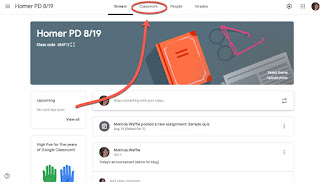
Image
Reusing a post in the Classwork area of Google Classroom allows you to copy an assignment (or question, quiz or material) from any other Classroom to your current one.  It is a nice way to copy and modify an assignment that is similar to one you already have used.  Or it can be a nice way to copy an assignment from another class into the current one. To reuse an item: When in the course you want to add the item to, click on Classwork - Click on Create - Select Reuse post - In the window that pops up, you can see the assignments you have already created in the current course.  If you are copying one from this course to modify, find and select it here - If you want an assignment from another course, click the arrow at the top left - Find the course you which to copy from, select it.  Then select the item you wish to use from the list that shows up -

Google Classroom - Add a Question-type assignment

Image
The Question type assignment can be a very useful tool within Classroom. It can be used: as an entrance or exit ticket,  to do a homework check,  gather information about your class (or data to use, even) to divide your students into groups by answer It is an easy item to add a question to your Classwork area.   Within the Classroom, click Classwork at the top -  Click on the Create button - Select Question - There are many options in the window that opens, several (1-2, 5-7, 9) are options for all assignments, while others (3-4, 8) are only options for a question - Select with Class (or classes) this will be posted to Select which students will see this (this can only be used if you are assigning it to one Classroom) Your Question to post Instructions for the question (this is optional) Points assigned (this can be none) Due date (optional) Topic (optional) Question type & information - more info below Files/links t...

Google Classroom - How to Find Assignments in G Drive

Image
Once students have turned in coursework that is not collaborative (ie. attachments, copied template documents, etc), you can access them in a G Drive Folder that is specific for that assignment if wanted.   (There are multiple ways to get to this - this is just one.) When in Classroom, first click on the Classwork tab at the top Click on the assignment you want to access - Once the assignment detail shows, click on View Assignment - Look for a folder icon on the left window, below the notifications about numbers turned in - It will open another tab with your Google Drive, and take you into the folder created for that assignment - you will notice the folder name matches the assignment making it also easy to find as a search of Drive -

Google Classroom - Adding an Assignment

Image
To add an assignment in your Google Classroom, first select the Classwork tab at the top - Then click on the blue +Create button - From the drop-down that appears, select Assignment - Enter in the assignment information on the screen that appears.  These are the areas of the screen: Title of assignment Any instructions or other information you want to include with the assignment Point value (can be No Points) Due date (can be No due date) Any attachments/Drive files/Youtube videos/hyperlinks you want included Assign and Trash buttons If you click on the arrow to the right of Assign, you get the options to schedule the assignment to appear on a future date, or save it as draft to complete later -