Posts

Showing posts with the label moodle

2016 MI Moodle Moot - Januar 7 & 8

Image
Registration is open for the MI Moodle Moot 2016, hosted at Mid Michigan Community College in Mount Pleasant on Thursday, January 7 (preconference workshops) and Friday, January 8 (Moot).  Sessions are available for those new to teaching online, blending instruction with Moodle, veteran Moodle using instructors, instructors who teach entirely online, and Moodle administrators.  Registration is $40 per day. On-site registration - an additional $10.  Up to 10 SCECHs will be available for the two days (pending approval.)  Visit http://mimoodlemoot.org for more information.  Follow MI Moodle Moot 2016 on Twitter using #mimoodlemoot Register here      Highlights Sessions for both K-12 and higher education 10 different half day hands-on preconference workshops including workshops for new Moodle users, experienced Moodle users and Moodle administrators 30 different 45 minute breakout sessions at the Moot Two hands-on he...

PD - MI Moodle Mott January 8 & 9

Image
Registration is open for the MI Moodle Moot 2015, hosted at Mid Michigan Community College in Mount Pleasant on Thursday, January 8 (preconference workshops) and Friday, January 9 (Moot).  Sessions are available for Moodle users of all levels - those new to teaching online and blending instruction with Moodle, veteran Moodle using instructors, and Moodle administrators.  Registration is $40 per day. On-site registration will be an additional $10.  SCECHs are available for additional cost.  Go to  http://mimoodlemoot.org  for more information.  Follow MI Moodle Moot 2015 on Twitter @ #mimoodlemoot ! Registration can be found here       Highlights Sessions for both K-12 and higher education 8 different half day hands-on preconference workshops including workshops for new Moodle users, experienced Moodle users and Moodle administrators 28 different hour long breakout sessions at the Moot, with many sessions providing...

PD Opportunity: Gather Your Tools - Using Moodle as a Launching Pad

Image
Teachers have all kinds of tools in their tool belt - when these are online tools, it can become confusing and time consuming for students to get to where they need to be!  The Gather Your Tools pd opportunity is a hands-on session over two days where teachers will set up a Moodle 2.7 course as a launching pad for all their online tools, providing a one stop location for their students to go to whenever online activities are involved.  When:  December 11 (4:00 - 8:30) and December 12 (8:30 - 3:00) Where: Calhoun Area Career Center; 475 E Roosevelt Ave; Battle Creek, MI Cost: $50* *FREE for educators located in REMC 12E (Calhoun and Branch Counties) - provided as a REMC 12E service   Register here ! General Agenda:   https://docs.google.com/document/d/17ZMvrAUVx-_2QSPlP_NLhorNIkVHd0g4m0pbiLuq1PE/edit?usp=sharing Program Goal : Participants will have a course ready to use with students the next day.   Objectives : build familiarity with wha...

Moodle: Course Layout - One Section at a Time

Image
A common issue on many Moodle courses is the plethora of items that end up on the "home" page of the course.  When a person starts building a course, they don't have much so begin with a habit of adding every item on the main page.  Over time, this becomes a monstrous beast, that takes a LONG time to load and eons to scroll through.  There are several methods that can be used to eliminate the "scroll of death" - some take more work than others.  This week I'll show one way to help students focus in on the current topic, and away from an endless stream of content. Viewing a Course by One Section  First - a caveat - you need to be putting content into topical areas for this to work.  If you have everything in the top content box...this won't help. This takes only one step.  Go into your Course Settings, and under the course format change the Course Layout to "Show one section per page:" When in non-editing mode or viewing the course as a studen...

Moodle - Restoring Grades When Restoring a Student

Image
Occasionally it happens...a student leaves a class, and then comes back in.  Or, even worse, the WRONG student is removed from a course.  With Moodle 2.5, did you know you have the ability to attempt a grade restore when reinstating the student into the course? When in the Enroll Users window, there is an understated area called Enrollment options: Clicking on this, reveals some additional choices available to you: With these choices, you can: opt to try to recover the user's old grades if possible (depends on your database & backup system) have them start from the current date OR the course start date If you have a course that has finite duration, you can set the enrollment duration Another awesome feature when you need it!

Moodle - Completion Status (an advanced feature)

Image
One of the newer features within Moodle is the availability of completion status.  As an instructor, you can turn this on (as long as it has been enabled at the server level) and then use it to help students "track" which items they have completed within your course. Advantages of this feature:  There are several advantages: If you do not use the gradebook, it gives an alternative way for students to track their progress It is flexible by activity so you can set completion "standards" such as a grade or action, or even set it so students can mark it themselves It can be used in conjunction with contingencies, so activities can be dependent on each other (students have to complete one activity to see or do another) Disadvantages of the feature:  There are a couple drawbacks to using this feature as well: While a default can be set within your course, if you set parameters for completion it has to be set on each activity It has to be enabled at the server lev...

Moodle - Managing the Messaging System

Image
Changing your Messaging Settings Today we will look at another way to control the number AND type of emails you are getting from your forums  and all other activities  in Moodle.  This is through your messaging settings. To get to your messaging settings, go to your settings and look under "My profile settings" for Messaging.  This will bring you to a window that has a list of all the items you can set your messaging choices for.  This list will change depending on the roles you have on the server -e.g.  if you are a teacher, you will have more choices than someone who is only a student on the server. For each item that appears in your list, you have two different messaging choices you can enable/disable via checkboxes: Popup notifications - which will appear on the screen when you log in for several seconds Email - which will send an email from the Moodle system to your account Additionally, you can choose whether/if it happens: When you are log...

Moodle - How to set forum subscription settings

Image
Controlling Emails from Moodle Today in looking at how to control the number of emails you are getting from your forums in Moodle, I will address subscriptions. First, you should know how to control your default subscription settings. To get there, log onto your Moodle and click on Administration - > My profile settings -> Edit profile Once there, look about half way down the information to the "Forum auto-subscribe" option. You can change that either to "Yes: when I post, subscribe me to that forum" or "No: don't automatically subscribe me to the forums."  Remember, this is a default setting; you can individually change it for each forum you participate in when posting.  So, if you do not want most of the messages you are getting from forums, you should select "No." Another choice you have is the Email digest type: You can choose from the following options to control the amount of email: No digest ( single email per fo...

Moodle - How to track unread forum posts

Image
If participating in forums in Moodle, one of the hard pieces is being able to keep track of which forums have new posts from your last visit there.  There are two options you have - one involves email and the other involves highlight within the Moodle course.  Today I will address the highlighting method - which is called tracking. Tracking forum posts is something that is set by each user in their profile.  To get there, log onto your Moodle and click on Administration - > My profile settings -> Edit profile Once there, look about half way down the information to the "Forum tracking" option.  You can change that to "Yes: highlight new posts for me" in order to enact this feature.  This will turn the feature on, which will put the number of unread posts next to the forum name AND place a colored box around each unread post.

Moodle 2 for Teachers & Admin - Drag & Drop into Text Question Type

Image
  Unbeknownst to many, there are various question types that can be added to Moodle to make quizzes more flexible - and more like some of the question types students may see elsewhere (read that - national testing...).  I'm going to demonstrate various question types over the next several weeks. Open University has created a whole host of question types.  Today we are looking at the "Drag and Drop Into Text" question.   Here is a video overview of how to set it up and use it: (This question types working on Moodle 2.1 forward; I am showing it running on Moodle 2.4. This addition must be added to your Moodle server by a Moodle Administrator.) Moodle Plugins - Drag & Drop into Text   Drag & Drop into Text   Documentation

Moodle 2 for Teachers - Some Updates with 2.4

Moodle 2.4 was just released, with several updates that teachers might find useful.  Some of the latest features include: Ability to stream in outside calendars - my calendar of choice is my Google calendar for a variety of reasons; the ability to use this within a Moodle course instead of maintaining a separate calendar is a huge time-saver! Ability to view student submissions on the page I am grading and providing comments - in 2.3 this was broken; I'm glad to say the restored it so now I can be writing my comments in the same window where I am reading the student's assignment, allowing me to provide more specific feedback. Blind marking of assignments - teachers can now turn on blind marking of assignments so they do not see student names while grading, a great way to help ensure you are providing objective feedback and grades. Group assignments - if you use groups, you can now assign an activity to a specific group, even requiring all group members to have submit...

Moodle 2 for Teachers - Offline Grading

Image
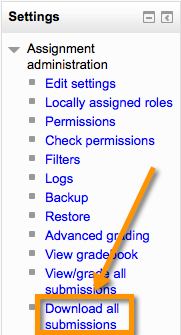
One of the updates to Moodle 2.4 was the ability to do what is called "offline grading." What does that mean for a teacher that would like to utilize it? Well, this DOES NOT mean that you stay on your Moodle site in the browser and attempt to grade when you do not have Internet access.  Instead, it created a way that a teacher may download all submissions - whether they be uploaded files or online submissions - in a folder with a couple clicks, and read these when not on the Internet. To use this feature, you simply: Click on the Assignment name Under the Assignment Administration, select "Download all submissions" A zipped folder containing all the submitted assignments will be created and downloaded to your computer.  You can unzip the folder and view all the assignments that were submitted at the time you downloaded them. You will not have access to the gradbook (if you use it) when viewing the assignments, but you could put grades into a spreadshe...

Moodle 2 for Teachers - Compiling Glossary Entries into a Main Glossary

Image
I often get asked about the differences between a "secondary" glossary and "main" glossary.  There are a couple key items to know about them: You can only have one (1) main glossary per course Items do not "auto-populate" - you have to import them in Here's a quick video showing how to import from a secondary glossary to a main glossary: http://youtu.be/73HIaesQR5M

Moodle 2 for Admins - Customizing Existing Themes

Image
Isn't it great?  With Moodle 2 people can now submit customizable themes!  Now (if I have one of these themes) I might be able to: easily change my logo, change some of the color choices, or even some additional changes.  What is available depends on the theme. Here's the video (if you prefer written instructions, they are below): Suggestions of actions to take first if you are planning on experimenting with this: Turn ON "Theme designer mode" in the Theme Settings Make the theme you are experimenting with the set them in the "Theme Selector" so you can see your changes (of course, if your site is live, so will everyone else) Click on the name of the Theme you wish to customize (here I'm picking Afterburner... because it is at the top, not because it's any better/worse than any of the other themes) Make the desired changes, "Save changes" at the bottom.  Refresh the site to see the changes. Some notes: If...

Book Review - Moodle 2.0 Course Conversion

Image
As a Moodle champion, I am often asked if there are book recommendations I would make to those teachers just starting out with Moodle.  I did this in the past, but with so many institutions upgrading to Moodle 2.+, there were just enough differences between 1.9 & 2.0 that those previous resources were creating confusion for the new Moodle user. Finally I have a resource that I can recommend to the new Moodle users I am working with: Moodle 2.0 Course Conversion by Ian Wild This book does a great job of introducing the brand new Moodler (person using Moodle) to the features and functionality available to them on a Moodle server.  It uses easy to understand examples, and incorporates hands-on practice exercises for the user to perform in his/her own Moodle course throughout.  Ian does a great job of incorporating tips and cautionary words for those pieces that might trip up the new user.  For example, after walking the user through uploading a file he inclu...

Moodle 2: Having Students Self-Enroll in a Course

Image
Having students self-enroll into a course can save a lot of time. A teacher still has control of whom is in the course, yet does not need to go in and manually add the students by hand. One trick some teachers use to prevent additional students from adding the course once a majority of students are enrolled is to change the enrollment key. Here are the directions for setting up and using this features in Moodle 2.+. Find out if your Moodle Administrator has enabled Self enrollment; this must be enabled first at the site level.

 (if they haven’t, you can share with them that it is done at: Settings -- Site administration -- Plugins -- Enrolments --; Manage enroll plugins )
   When in your course, go to Settings -- Course administration -- Users and click on Enrollment methods.
   Click on the icon to edit the Self enrollment settings ( NOTE: the icon will vary depending on your theme):   Change appropriate settings (definitely make sure “Allow self e...