Posts

Showing posts with the label websites

Google Sites: Filter Pages

Image
As your site gets larger (hopefully that means has lots of pages, not a scroll of a single page...), and you begin organizing your pages into levels you may want to quickly find a page.  This features is available! When looking at the Pages window, notice at the top there is a "Filter pages" option:  If you begin typing a word from the page you are looking for, the pages that match will begin displaying below: The easy way to find a page :-)

Google Sites - Add Custom Links to Navigation

Image
There is a new feature in Google Sites that is going to make a lot of people happy!  You can now add custom links into the navigation.  You want a link to your SIS?  You can do it at the top level now! Now, when looking at the Pages window, instead of a "New page" icon, there is a plus sign:  Hovering your mouse over that + will pop up (currently) two options to choose from, the "New page" icon and a new "New link" icon:  Selecting the "New link" icon, you will get a pop-up window where you can give the website you wish to link to a name and copy in the URL.  When linking, note that you can also select an existing page on your site (which will allow you to order the pages in the navigation menu differently, or even have a page linked in two places in the menu).  You also have the choice of whether it opens in a new tab, or over top of the website itself: You can then grab, drag and move the link as a main level or sub-level to any o...

Google SItes - Embedding an Awesome Table View

Image
Awesome Table was an add-on that made sharing information from a spreadsheet very easy in the old Google Sites.  Guess what?  You are able to insert an Awesome Table in the New Google Sites! This is a dynamic way to share spreadsheet data - even data that changes often - and make it searchable for visitors to your website. Make your spreadsheet of data: Look like this on your website: Step 1: Set up your spreadsheet Here are their directions for setting up the spreadsheet: https://support.awesome-table. com/hc/en-us/sections/ 115000315609-Basic- configuration The basics - create your spreadsheet, making sure each column has a header at the top.  Add a second header row that sets up the filters and keywords - these tell Awesome Table how to display your spreadsheet. Step 2: Connect the Aweome Table service with your Google Account Once you set your spreadsheet up, you will need to log into this site with your Google Account: https://awesome-tabl...

OER Resources from the #LCCOER Summit

Image
I attended Lansing Community College's 2nd Annual Open Educational Resources Summit on Feb. 24th. As I was gathering resources from the summit to share in a blog, I had a bulletin from the Library of Michigan appear in my inbox with the following timely information.  These are all worth checking out! From Karren Reish of the Library of Michigan - "Lansing Community College's 2nd Annual Open Educational Resources Summit was Feb. 24th. Some of the content discussed is appropriate to the K-12 community. Thanks to Rita Kohrman from Grand Valley State University for the following information about sites discussed. ______________________________ ____ OER Commons : https://www.oercommons.org/ OER Commons is a dynamic digital library and network. Explore open education resources and join our network of educators dedicated to curriculum improvement. A “hub” found in OER Commons: STEM Literacy : https://www.oercommons.org/ hubs/stem-literacy ...

Google Sites - Overview of "New" Sites

Image
Google's updating of Sites was much needed.  It was feeling/looking outdated and it was still in the world of WYSIWYG website creators.  There are many reasons to switch to the updated Sites, including the following: Resides within Google Drive: you can create new sites and access your existing sites right within Drive, no going to a different location User interface is more intuitive: actions are much more intuitive on the new sites ADA Compliance: the new sites works hard to force you to be compliant, which means a limit in some features.  It is still the user content that can break this, but the dynamic layouts that adjust to devices, color contrasting within the themes and ease in adding Alt Text to images are game changers from the old sites Some of the cons: Loss of the page-level sharing: this will only impact a small percentage of people, but for me it was key in having part of a site viewable to the public and part of it private to select people. Ad...

Google Sites - Create a Site (updated version)

Image
Google has been doing some serious revamping of Google Sites, and the "new" sites is a vast improvement over the old - both in visual appeal and ease of use for an average user. If you go to sites.google.com, there is now an option to move into the updated Sites - The first time you click on this, you will get a "welcome" message - Instantly you will notice the change, as you have moved from this - to this - Some items in this new Sites window - 1. Clicking on the "pancake" will give a window connecting you to your Google Drive - 2. There is a link back to your "old" Google Sites if you need to view one of those (as of the time of this blog there still wasn't a way to migrate). 3. Searching and ways to view the Sites window are located in this corner 4. There is a "plus" icon - very similar to Google Classroom - for adding a new site. Once you are in this window, simply clicking on the plus icon will add a ...

Celebrating Women During Black History Month

From Tina Tribu, Instructional Technologist & Data Specialist from Kalamazoo RESA - Celebrating Women during Black History Month ~ just to name a few that you may not have studied before .  It is exciting that when conducting a search so many great individuals and groups are within our means to celebrate!  I am hoping a little something for everyone to explore.  Please feel free to share others that you are celebrating. 1.        Black Women in Computing 2.        The True Story of “Hidden Figures” 3.        Founder of Black Girls Code – Kimberly Bryant 4.        1 st Black Female Sheriff in Texas ~ Zena Stephens 5.        Technology Director, Educator, Author ~ Rafranz Davis 6.        Physicists Pioneer in Curing Cancer ~ Hadiyah-Nicole Green 7.    ...

MeL - Election Resources

Image
From MeL (Michigan Electronic Library) - How many days until the Presidential election?   Seven, so there’s still time to do some research if you...have questions. A valuable unbiased, nonpartisan source is the MeL database Opposing Viewpoints in Context . [I]t’s designed with students in mind but any Michigander can browse the issues list to learn about topics such as immigration, gun control, women in politics, national security, and many more.   Websites that might prove useful include: Michigan Secretary of State – numerous links to resources including a full candidate listing for all open offices. ProCon.org – side-by-side comparison between candidates on 75 key issues as well as other resources. Vote Smart – Just the Facts - free , factual , unbiased information on candidates and elected officials and their votes, positions, ratings, speeches, and funding. Pew Research Center – research and studies. PBS News Hour Watch the Debat...

Google Sites - The Proper Way to Change Fonts & Colors

Image
Whenever you are working with a website, there is definitely a better way to make formatting changes that involve fonts & colors.  And this way does NOT involve using the little icons on the formatting toolbar - which is the obvious way since it is there visible when you are editing your pages! The proper way is to make those changes so they will set them for the entire site.  With Google Sites, it means making them in the Manage Site area.  When in the Manage Site screen, in the menu on the left is the option Themes, Colors and Fonts - this is what you want to select. Once there, you will see the following: Here's what all these areas are: Theme - you can see which theme you currently have selected, and change to another theme Page Areas - you can select which area of the page you would like to modify Page Parts - this list the various parts/options that can be changed Format - this shows the formatting that you can modify Preview - a preview windo...

Google Sites - Adding Hyperlinks to Your Pages

Image
Adding hyperlinks to your website is the best way to connect to additional content without cluttering up your page.  There are two different ways we will look to hyper link here. First, before you begin, you need to make sure your page is in Edit mode.  If it isn't, click the pencil to put it in Edit mode so you have the formatting toolbar.   Once in editing mode, highlight the text you want the hyperlink connected to.  (It does make your page cleaner and easier to read if you link text rather than putting the URLs within the text of your page.)   The first way you can hyperlink is between pages within your site.  In Google Sites, this is the default it displays in the linking pop-up.  To link to another page on your site, you can either type it in the search bar OR you can click through your pages in the list provided to find it:   Once you select it, you would click ok and the hyperlink will form between the current pa...

Google Sites - Creating a Customized Template

Image
One useful feature that many people do not know about is the ability to create your own custom template pages to use on your site.  This can be nice for several reasons: You are going to be creating multiple pages with a similar layout You are going to be creating multiple pages with similar content You want multiple pages to have the same settings Or any combination of the above! Creating your own template is easy - 1. Set up the content/layout/features that you want for your template in a new page (or you can open an existing page that already has all this!) 2. Go to the Gear and select Save as page template   3. Name the template, and select where you want pages created with this template to save 4. Make any additional changes you want to the page (adding or deleting content, etc) - then Save just like a regular page. To use your new template, when creating a new page click the dropdown under Select a template to use - your templates will be added to t...

Google Sites - Adding an Image from Google Drive

Image
While it would be nice if Google simplified the image options (like they have in Documents), if your image is stored in Google Drive you go about inserting it a bit differently.  1. Click on Insert and go to Drive 2.   Select the Image option here.  3. This will let you search and select the image from your Drive.  That's it!  Just not intuitive when you have an Image option right under the Insert, but it does show how easy it is to integrate something that is already stored in your Google Drive.

Google Sites - Uploading an Image from your Computer (Device)

Image
The best way to "jazz" up your web pages so they are attractive to visitors is to add images.  Usually images selected for a web page tell either something about the content of the page, or something about the website owner.  One word of advice - make sure the image you want to use is in an accessible area (for instance NOT inside a picture app where it might be difficult to identify and select it).  To add an Image: 1. While in Edit mode, go to the Insert Menu and select Image 2. To find and select a new picture, click on the Upload Images button. 3. In the pop-up window, you will find and select the image from it's location on your computer.  4. Google will upload it to your site. Once the image has been uploaded to the site, you are able to use it anywhere on that specific site, as many times as you wish.

Google Sites - Add a New Web Page to your Google Site

Image
The first page created on your site is the Home Page - this is the landing page for visitors to your site.  We need to create additional pages for our content, so that our home page contents can be built with intention - otherwise the home page quickly becomes cluttered and too long! Here are the steps for adding an additional web page to your Google Site: 1. Click on the icon that is a Paper inscribed with a + 2. Set your new page settings - Give your new web page a name  Leave it as a Web Page template Put the page under the Home page (makes it cleaner when you have a lot of pages to organize as you go) 3.  Click the Create button Your page will be created and put into edit mode so you are ready to add content. 

Google Sites - Create a New Site

Image
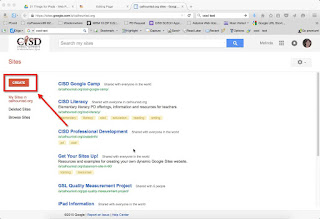
As a Google Apps for Education school district, one very flexible tool that you have access to is Google Sites.  It is a website creator, but also give you the ability to do the following: Have pages accessible by parents (public viewing), and other pages on the site only view-able to your students (private viewing) Integrate seamlessly with the host of Google tools - including forms that can be filled out on the spot (without going to another page), embedded maps, and shared calendars to name a few Easily share files/documents with site visitors Fully integrate a blog/announcement page There are many other features, but like any tool with the flexibility of many features it means a little bit more of a learning curve (think of Swiss army knife vs. screwdriver). Here are the steps for creating a Google Site: 1. Go to sites.google.com If you haven't yet, log into your Google account. 2. Click on the Create button 3. Enter the settings for your site.  Blank Te...

Website Find: Quizizz

Image
Cannot take credit for this find - heard about it at the Michigan Digital Learning Conference during +Leslie Fisher 's keynote.  Quizizz ( @quizizz ) Now that I've played a bit with it, I can recommend it as a very versatile and easy-to-use quizzing type site.  I say quizzing type site, because you can use it as a flash card type site (think Quizlet) or a class compete type site (think Kahoot) and probably a couple other ways I haven't thought of yet - but I'm sure others have. And, best part, it's FREE. You have the ability to create your own quizzes, or use some that are already created.  If creating your own, the interface is drag and drop - and you can even add questions from other quizzes into your new one! When running your "game," you have several options to toggle on or off to customize it to your teaching goal or your students learning style.  Don't want a leaderboard?  Turn it off!  No time?  No problem! (Quite frankly, not being a...