Posts

Showing posts with the label create

Technology Tidbit - Learn to Draw...

(Part of our Stay-At-Home series focused on practical ways you can use a resource to foster creativity, connections, and collaboration.) ...or another new skill! There are many artists sharing weekly or daily lessons that anyone can access. Here are a few that you might want to check out: Draw Everyday with JJK - author & illustrator Jarrett J. Krosoczka has created a YouTube channel where he is sharing drawing lessons every day.   Lunch Doodles with Mo Willems - this Kennedy Center Education Artist-in-Residence at Home; he even has some episodes where he shares what kids have drawn and shared back with him! Si ght Reading Factory - get your music on! Practice that instrument or sing a song - they are providing unlimited exercises!  Take Art Lessons - Artyfactory's free art lessons share the knowledge and understanding of art and design to improve your artistic skills and to increase your enjoyment in creating artworks. DIY Film School - impr...

Technology Tidbit - Video Resources

(Part of our Stay-At-Home series focused on practical ways you can use a resource to foster creativity, connections, and collaboration.) There are many organizations that are offering video resource (or TV programming) each day which may be useful to parents and teachers.  Here is a short list of a few that are freely available you may want to check out: Public television (and their companion websites) are changing programming to focus on materials for K-12 Students at home until further notice.  PBS stations have blocked out time for each level - 7-9am is PBS Kids materials appropriate for 2-8 year olds; 9am - 1pm is for students Grades 4-8; 1-6pm is for students Grades 9-12. Additionally many have companion resources that can be used with the programming.  PBS Learning has resources and learning activities in most subject areas.  Students do need to make a (free) account if they do not already have one.  Discovery Education is providing daily learni...

Technology Tidbit - Get Outside!

(Part of our Stay-At-Home series focused on practical ways you can use a resource to foster creativity, connections, and collaboration.) Parents - There is a growing body of research that shows being outside in nature can have positive benefits for our mental well-being.  With what we are dealing with currently, I think we all can use activities that are good for our mental health. Go for a walk There are many activities that you can do while walking.  Here are some suggestions to make it an learning adventure: Make Observations Have kids share or journal what they experienced with their senses during the walk.  For instance, today I saw  our mating crane pair was back from the south, I felt  my face warm on one side from the sun and cool on the other from the wind, I heard  the frogs that have returned to the creek.  You could even showcase a sense a day! Observe the clouds, the weather, wildlife, insects, amount/types of traffic Look for...

Technology Tidbit - Museum Treasure Troves

(Part of our Stay-At-Home series focused on practical ways you can use a resource to foster creativity, connections, and collaboration.) Maybe during our stay-to-home time is the best time to travel to other states or even other countries, just to visit Museums that we may never get the chance to see in person!  Museums both have had, and have been adding, lots of resources for parents, students and teachers the last several years.  Some of these include: Virtual Tours Apparently there are now 2,500 museums that offer virtual tours from home.  It would take a long time to visit all of them! You can find many of them through Google Arts & Culture .  Take, for example, the National Gallery of Art in Washington, DC.  You can view many of the paintings viewable there - without the crowd - and even learn a bit about them from information added on the page.  Or go to Rome and see the Sistine Chapel. Here are some ways to you might engage students throu...

Technology Tidbit - Keep them writing!

(Part of our Stay-At-Home series focused on practical ways you can use a resource to foster creativity, connections, and collaboration.) Continuing to write can be very important for students (and adults) right now, not just for learning but also for our social/emotional health.  Writing can help all of us work through emotions, and deal with the uncertainty of the situation many of us find ourselves in currently.  Yet, as many teachers can attest, it can be HARD getting students to start writing. Here are some ideas/resources that can help encourage your child to write: Multi-day writing Journaling example-  COVID-19 Pandemic : "chronicle the changes you observe as your community, the country, and the world respond to Covid19" This document includes a variety of modification for elementary, students with special needs, and even one with added social-emotional reflection questions.  It can be helpful for students to process through their experiences and...

Technology Tidbit - Ways to Use the eBooks/Audiobooks

(This is the start of our new Stay-At-Home series focused on practical ways you can use a resource to foster creativity, connections, and collaboration.) There are a variety of companies providing eBooks and/or Audiobooks for parents and educators while students are not able to attend their schools.  But, what can you do with them - or any book for that matter? Teachers : Here are some ideas for ways eBooks or Audiobooks can be used to connect with your students. Share a link to one of your favorite books in your communications with your students, along with why it is one of your favorites.  Invite students to read or listen to it, and invite them to share back a link to one of their favorites. Encourage students to create their own "audiobook" recording of a book for elementary school students (you may give some examples of appropriate books), which you can then share with your elementary teachers for sharing Inspire students to create a book report on what they are...

Google Classroom - Create a New Classroom & Set the Theme

Image
With a new school year upon us, several teachers are looking to use Google Classroom to help, among other things, with the permissions and sharing of Google Drive files.  With some new features, Classroom just continues to be a valuable tool that help with efficiency in document management (my opinion). For those of you new to Classroom, here is how you get started.  And, a note, these steps might take you 2 minutes max - and that is if you take a LONG time to select your theme ;-) To create a new Classroom and set the theme - 1. Go to Classroom by either typing classroom.google.com into a browser URL address bar  OR go to the waffle and click the classroom icon 2. Click on the + in the upper right corner 3. In the pop-up window, click on Create class 4.  A window will appear to give your class information - you are REQUIRED to give it a name (surprise), but the other fields are optional.  Once down, click on CREATE in the bottom right ...

Google Calendar - Create a Second Calendar

Image
Here is a video on  how to create an additional calendar , if you prefer. Using multiple calendars is a good strategy for controlling what information is shared with others.  There are 4 reasons I often hear educators creating multiple calendars -  reminders for you (that don't make you "busy" when others look at your main calendar) for events specific to a project (to separate them from your day-to-day events) managing tasks with due dates (especially items you do not want on your main calendar) shared events with a group (a calendar where everyone can add/change events without changing each others main calendar) To create a second (or additional) calendar to use, go to the + by the "Add a coworker's calendar" in the middle of the left side bar: Click on that + to see a variety of options - select New calendar: A window will pop up, enter in the Name of your additional calendar, then click on CREATE CALENDAR: That's it!  T...

"What Inspires You?" - Doodle 4 Google Contest is Now Open

Image
Another opportunity to showcase your students' creative abilities!  Google just opened this year's Doodle 4 Google Contest -  From Google - It’s time to put your students' imaginations to work, because the Doodle 4 Google contest is now open. This year’s contest is open to K-12 students until March 2, 2018  with the theme “What inspires you?" We’ll feature the winning doodle on the Google homepage! Prizes include college scholarships, a behind the scenes experience with the Google Doodle team, and a $50,000 Google for Education technology package for the winner’s school. Submit your doodles  here . Some additional Information - Link to teacher guides (which include lesson plans) and a poster Link to the FAQ

Google Forms - Creating & Naming

Image
(Part of my administrative assistant series on Google Forms.) In my opinion, forms are one of the biggest pros to using G Suite for Education.  They can be used to eliminate: email chains to gather opinions and/or ideas, paper ballots that are counted by hand, a series of phone calls to get the same information from multiple people.  Those are just a few of the ways you can use them. They are also one of the easiest to pick up and begin using.  We will start this new series with how to create a Form. Creating a Form To create a new form, click on the blue New button, mouse down to More, mouse over to Google Form and click:  When you create a form, you are automatically in "edit" mode.  This is NOT the place you will be having people complete your form so do not share the URL at the top .  It will not work like you expect it to :-) Once your form is created, you will see the following screen.  Purple is the default color theme - Na...

Google Script - Create a Folder from Form Entry Data

Image
Just put together this quick little script as we needed a folder created upon a form entry. In our case, we needed a folder created with the name of the person, so we are pulling the name entry from the form and setting that as the folder name.  This also includes how to direct it where to save these folders so they are sub-folders of an existing folder and not cluttering up the root level of your Drive. Thought I would share in case someone else needs something similar! 1. Create your form. You may want to enter 1 sample entry so you can test your script later.  2. Create the form responses spreadsheet. This will house the data from the form entries - you will be connecting the script to this sheet. 3. Open up the Script editor  Go to the Tools Menu and select Script editor. 4. Replace the code . Replace the default code - with this - (all the text highlighted in gray include the final bracket) - function createStudentFolder() {   // ide...

Google Script - Create Calendar Events from Spreadsheet Data

Image
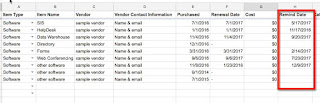
Yesterday I shared how I added reminder dates to a spreadsheet for a person in my department who keeps track of software subscriptions.  Today I'm sharing how we take the entries on that spreadsheet and create calendar events, so the reminders are built into her calendar. Here are the steps to create calendar events from spreadsheet data: 1. Either open the spreadsheet with the data (or create a new spreadsheet & populate it with data). This is the spreadsheet where I first added the script to add a "remind date" (yesterday's post). 2.  Open the Script Editor Go to the Tools Menu and select Script editor 3. Replace the Code Replace the default code - with this - (all the text highlighted in gray -  including the final bracket) function createCalendarEvent() {   var sheet = SpreadsheetApp.getActiveSheet();   var calendar = CalendarApp.getCalendarById(' calendarID ');     var startRow = 2;  // First row of data to pr...

Google Sites - Create a Site (updated version)

Image
Google has been doing some serious revamping of Google Sites, and the "new" sites is a vast improvement over the old - both in visual appeal and ease of use for an average user. If you go to sites.google.com, there is now an option to move into the updated Sites - The first time you click on this, you will get a "welcome" message - Instantly you will notice the change, as you have moved from this - to this - Some items in this new Sites window - 1. Clicking on the "pancake" will give a window connecting you to your Google Drive - 2. There is a link back to your "old" Google Sites if you need to view one of those (as of the time of this blog there still wasn't a way to migrate). 3. Searching and ways to view the Sites window are located in this corner 4. There is a "plus" icon - very similar to Google Classroom - for adding a new site. Once you are in this window, simply clicking on the plus icon will add a ...

Introduction to the NEW Template Gallery in Google Docs, Spreadsheets & Slides

Image
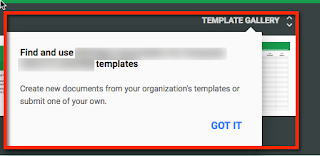
Finally!  We have access to the new template gallery in Google Docs, Sheets and Slides. From any Google account you are able to access it - but it may not be as intuitive to get to as the "old" template gallery was.  You need to go to the landing page for that TYPE of document, which I find many people still don't know about.  So, go to: docs.google.com for your Documents sheets.google.com for your Sheets slides.google.com for your Slides forms.google.com for your Forms The first time you go to these, you will get a message about the Template Gallery: After that, you will both see a top bar with existing templates AND a link in the upper right that says Template Gallery. Now if you belong to a Google Apps for Education organization, and templates are enabled, you have a couple additional options not available with a general Google account. 1. You will have a choice of General templates or your organization's templates 2. You will also see a choi...