Posts

Showing posts with the label course

Google Classroom - Organizing & Archiving Your Courses
Image
What if you need to change the name of a course?  or what can you do with your courses from last year? Can you put your courses in a different order when looking at them?  Can you copy a course that you have all set up how you like? It can be important to know the answers to questions such as these.  Below, we will walk through the "More menu" for a course, which is how to organizing, edit, copy and archive your courses. You can access the More Menu by clicking the upper right corner of a course (it is 3 stacked dots) - This gives you several options for the course -  1st - Move -  Selecting Move brings up a window that lets you choose where to move the course in relation to your other courses.  Easily move it to the beginning (1) or the end (3) of your list - Another way to move courses is by drag & dropping -  2nd - Edit  Selecting Edit will bring up the same window as when you created the course so you can change ...

Google Classroom - Create a New Classroom & Set the Theme

Image
With a new school year upon us, several teachers are looking to use Google Classroom to help, among other things, with the permissions and sharing of Google Drive files.  With some new features, Classroom just continues to be a valuable tool that help with efficiency in document management (my opinion). For those of you new to Classroom, here is how you get started.  And, a note, these steps might take you 2 minutes max - and that is if you take a LONG time to select your theme ;-) To create a new Classroom and set the theme - 1. Go to Classroom by either typing classroom.google.com into a browser URL address bar  OR go to the waffle and click the classroom icon 2. Click on the + in the upper right corner 3. In the pop-up window, click on Create class 4.  A window will appear to give your class information - you are REQUIRED to give it a name (surprise), but the other fields are optional.  Once down, click on CREATE in the bottom right ...

Documents of Freedom - FREE Digital Course from Bill of Rights Institute

Image
The Bill of Rights Institute has developed Documents of Freedom , a free , comprehensive , interactive digital course covering all the history, government, and economics topics in traditional textbooks. Written for teachers by teachers, all materials highlight primary sources and meet state standards. Teachers can search for primary-source-focused resources that fit seamlessly into their teaching plans. They can access student readings along with corresponding teacher materials, including classroom activities, presentations, and assessments. Incorporated into the readings are engaging images and videos that provide a more interesting way for students to interact with historical content. The course material is available everywhere from a laptop to a cellphone, from the computer lab to students’ homes. Students can easily adjust the display of the text and choose the style and size that works best for their individual preferences and learning needs.

PD Opportunity - FREE Online Google Sites PD

Image
After conversations with several local districts, I'm putting together a self-paced online course on creating your website with Google Sites.  (It is about 1/3 done.)  I'm looking for some people that are interested in going through the course - both to create their own website, and to provide some feedback on ways to improve it.  If you are interested, fill this form out .  I will contact you with the details. 

PD Opportunity: Gather Your Tools - Using Moodle as a Launching Pad

Image
Teachers have all kinds of tools in their tool belt - when these are online tools, it can become confusing and time consuming for students to get to where they need to be!  The Gather Your Tools pd opportunity is a hands-on session over two days where teachers will set up a Moodle 2.7 course as a launching pad for all their online tools, providing a one stop location for their students to go to whenever online activities are involved.  When:  December 11 (4:00 - 8:30) and December 12 (8:30 - 3:00) Where: Calhoun Area Career Center; 475 E Roosevelt Ave; Battle Creek, MI Cost: $50* *FREE for educators located in REMC 12E (Calhoun and Branch Counties) - provided as a REMC 12E service   Register here ! General Agenda:   https://docs.google.com/document/d/17ZMvrAUVx-_2QSPlP_NLhorNIkVHd0g4m0pbiLuq1PE/edit?usp=sharing Program Goal : Participants will have a course ready to use with students the next day.   Objectives : build familiarity with wha...

Moodle: Course Layout - One Section at a Time

Image
A common issue on many Moodle courses is the plethora of items that end up on the "home" page of the course.  When a person starts building a course, they don't have much so begin with a habit of adding every item on the main page.  Over time, this becomes a monstrous beast, that takes a LONG time to load and eons to scroll through.  There are several methods that can be used to eliminate the "scroll of death" - some take more work than others.  This week I'll show one way to help students focus in on the current topic, and away from an endless stream of content. Viewing a Course by One Section  First - a caveat - you need to be putting content into topical areas for this to work.  If you have everything in the top content box...this won't help. This takes only one step.  Go into your Course Settings, and under the course format change the Course Layout to "Show one section per page:" When in non-editing mode or viewing the course as a studen...

Rubrics & Google Forms

This past week a thread went through the K12 Google Apps listserv about using rubrics within Google.  One post shared how Kevin Bookhouser - an English teacher - uses them to grade his students essays. He has created a great video explaining how he does this: http://www.youtube.com/watch?v=vTrD_0KQbDE This method could be used for any rubric you wanted to use, so if you have been contemplating this I would check it out!

Moodle 2 for Teachers - Offline Grading

Image
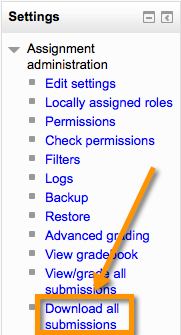
One of the updates to Moodle 2.4 was the ability to do what is called "offline grading." What does that mean for a teacher that would like to utilize it? Well, this DOES NOT mean that you stay on your Moodle site in the browser and attempt to grade when you do not have Internet access.  Instead, it created a way that a teacher may download all submissions - whether they be uploaded files or online submissions - in a folder with a couple clicks, and read these when not on the Internet. To use this feature, you simply: Click on the Assignment name Under the Assignment Administration, select "Download all submissions" A zipped folder containing all the submitted assignments will be created and downloaded to your computer.  You can unzip the folder and view all the assignments that were submitted at the time you downloaded them. You will not have access to the gradbook (if you use it) when viewing the assignments, but you could put grades into a spreadshe...

Moodle 2 for Teachers - Compiling Glossary Entries into a Main Glossary

Image
I often get asked about the differences between a "secondary" glossary and "main" glossary.  There are a couple key items to know about them: You can only have one (1) main glossary per course Items do not "auto-populate" - you have to import them in Here's a quick video showing how to import from a secondary glossary to a main glossary: http://youtu.be/73HIaesQR5M

Book Review - Moodle 2.0 Course Conversion

Image
As a Moodle champion, I am often asked if there are book recommendations I would make to those teachers just starting out with Moodle.  I did this in the past, but with so many institutions upgrading to Moodle 2.+, there were just enough differences between 1.9 & 2.0 that those previous resources were creating confusion for the new Moodle user. Finally I have a resource that I can recommend to the new Moodle users I am working with: Moodle 2.0 Course Conversion by Ian Wild This book does a great job of introducing the brand new Moodler (person using Moodle) to the features and functionality available to them on a Moodle server.  It uses easy to understand examples, and incorporates hands-on practice exercises for the user to perform in his/her own Moodle course throughout.  Ian does a great job of incorporating tips and cautionary words for those pieces that might trip up the new user.  For example, after walking the user through uploading a file he inclu...

Moodle 2: Creating New Courses

Image
Our organization updated our Moodle server to 2.1 over Labor Day weekend, and the requests for "how-tos" are starting to trickle in.  With the beginning of the school year, here is one of the "biggies" right now: Creating New Courses Here is a quick YouTube video on how to add a new course. Quick comparison : Overall the process has not changed much from 1.9 to 2.+.