Posts

Showing posts with the label class code

Google Classroom - How to Reset & Disable the Class Code
Image
There are several options available with the class code that you may find useful.  (If you prefer, you can watch the video .) This can be especially useful if you want to update or disable your class code.  Options for your class code, including how to reset and disable it: Click on the gear in the upper right corner of your class Scroll down to general section, the class code listed here.  Click on the arrow on the right side: You will have 4 options in this menu. Display Copy Reset  Disable Display will enlarge the class code so it is more easily seen Copy will put the code on the clipboard so you can paste it into email or into a doc, ect Reset will change the class code (sometimes you want to do this if similar characters make up the current code - like "l", "1") Disable will disable the code completely ( you can re-enable it if needed in the same location)
Google Classroom - Disable or Reset a Class Code

Image
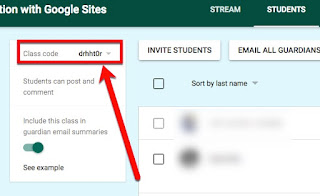
Sometime you want to disable a course code so additional people cannot join.  Or maybe you want to reset a class code because one of the characters used in it is ambiguous (think "l" and "1").  Many people don't know that there is a More menu just for use with the class code within your course.  To get these options, first click on the Course Settings (gear icon) - Look for Class code, and click the arrow next to the assigned code - You have 4 options.  First, the Display option-  This pops up a window with a large typeset of the code - Second, Copy will copy the code onto the clipboard for pasting elsewhere -   Third, Reset the class code - When selecting reset, you will both get a notification in the bottom left corner, and can see that the class code has changed - Finally, Disable will disable the class code option - When selecting disable, you will both get a notification in the bottom left corner, and can see that the ...

Google Classroom - Enroll in a Course Using a Class Code

Image
As more educators begin to use Google Classroom, it seems as if Google keeps updating it and adding features. Here are some updated posts with the newest Classroom look. Your teacher may give you a class code to join a Google Classroom.  To join using the code, when logged in to your Google Account at classroom.google.com click on the plus sign in the upper right corner - Choose Join class in the window that pops up - 1 - Type in the Class Code provided to you then 2 - click on JOIN This will enroll you into the course and open the course up for you -

Google Classroom - Class Code Options

Image
By far the quickest and easiest way to enroll students into your Google Classroom Class is through self-enrollment with the Class Code.  There are several options you have with the Class Code that are hidden in a drop-down you should be aware of. 1. Display : display the class code for projection so your students can easily see it.  You can even click the icon to have it go full screen: 2. Copy: copies the class code unto the computer clipboard. 3. Reset: will reset the code to a new one if needed.  (Note: after disabling your class code, if you Enable the class code back on it will automatically provide a new code.) 4.  Disable : disables the use of the class code. So, for instance, if all your students are enrolled and you don't want the code shared out so "others" lurk in your class.