Posts

Showing posts with the label grading

Google Classroom - The To-Do Menu in the Sidebar

Image
If you are going to Google Classroom and want to get a list of work needing your attention, this is very easy to do - as a teacher or as someone enrolled in a course.  This can be especially useful when you have multiple courses to manage. (It is probably worth a few minutes to demonstrate this to your students so they know about it as well.) To get to the To-Dos, click on the 3 horizontal lines (some people call this the hamburger or pancakes...) - Click on To-do under teaching to see the assignments you have given - This window will display all your assignments, along with their status (how many turned in, how many were assigned, how many have been graded) - If you want to select to see this just for one class, look over on the left upper corner where it says All classes - Clicking that will display a dropdown of all your classes, so you can choose which one to view - As a student, looking down a bit further in the left sidebar (seen by clicking those 3 hor...
Rubrics & Google Forms

This past week a thread went through the K12 Google Apps listserv about using rubrics within Google.  One post shared how Kevin Bookhouser - an English teacher - uses them to grade his students essays. He has created a great video explaining how he does this: http://www.youtube.com/watch?v=vTrD_0KQbDE This method could be used for any rubric you wanted to use, so if you have been contemplating this I would check it out!

Moodle 2 for Teachers - Some Updates with 2.4

Moodle 2.4 was just released, with several updates that teachers might find useful.  Some of the latest features include: Ability to stream in outside calendars - my calendar of choice is my Google calendar for a variety of reasons; the ability to use this within a Moodle course instead of maintaining a separate calendar is a huge time-saver! Ability to view student submissions on the page I am grading and providing comments - in 2.3 this was broken; I'm glad to say the restored it so now I can be writing my comments in the same window where I am reading the student's assignment, allowing me to provide more specific feedback. Blind marking of assignments - teachers can now turn on blind marking of assignments so they do not see student names while grading, a great way to help ensure you are providing objective feedback and grades. Group assignments - if you use groups, you can now assign an activity to a specific group, even requiring all group members to have submit...

Moodle 2 for Teachers - Offline Grading

Image
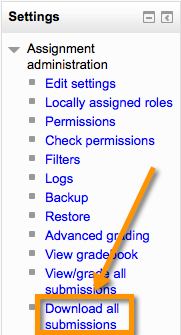
One of the updates to Moodle 2.4 was the ability to do what is called "offline grading." What does that mean for a teacher that would like to utilize it? Well, this DOES NOT mean that you stay on your Moodle site in the browser and attempt to grade when you do not have Internet access.  Instead, it created a way that a teacher may download all submissions - whether they be uploaded files or online submissions - in a folder with a couple clicks, and read these when not on the Internet. To use this feature, you simply: Click on the Assignment name Under the Assignment Administration, select "Download all submissions" A zipped folder containing all the submitted assignments will be created and downloaded to your computer.  You can unzip the folder and view all the assignments that were submitted at the time you downloaded them. You will not have access to the gradbook (if you use it) when viewing the assignments, but you could put grades into a spreadshe...