Posts

Showing posts with the label form

Google Script - Create a Multiple Choice Quiz from Questions in a Spreadsheet
Image
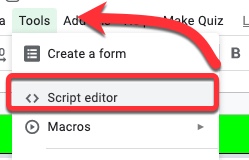
Recently I was asked if there was a way to create a multiple choice quiz from a spreadsheet which had the questions and answers already in it.  A colleague (thank you Andy Mann !) found a script created by Jason Jurotich which we were able to simplify and adapt for our own purposes with the  REMC project  21Things4Students .  Our modified script creates a Google Form multiple choice quiz from the active sheet (the one you are currently looking at) in a Google Spreadsheet.  If you have multiple sheets with questions (say 1 sheet for each chapter), you can create a new quiz just by running the script again on a different sheet!  Below is how to add the script, what it does, and what you may want to modify -   Adding the script 1. First, while in the spreadsheet you are going to use (whether the questions are set up or not), go to the Tools Menu - Script Editor 2. Delete out the code that is there. Copy and paste in the script found in the document...

Google Classroom - Add a Quiz Assignment

Image
The Quiz assignment is a bit different than other items in Classroom.  It actually creates a new form that is created from a template that has the quiz features of a form turned on and setup.  What is nice about using this instead of providing a link to a form from Classroom: you can use a locked mode (if students are using Chromebooks managed by your domain), the results of the "quiz" can be loaded back into Classroom, and the Quiz settings are already turned on for you within the form.  All of these help save time, and keep your students where they should be :) To create a Quiz Assignment in the Classwork area: Within the Classroom, click Classwork at the top - Click on the Create button - Select Quiz assignment - This will bring up the window that is similar to other types of items you might add.  There are a few differences - 1. You can use a locked mode if students are using Chromebooks are managed by your domain 2. You can choose to impo...

Google Forms - Reuse the same spreadsheet when resetting a form

Image
Previously I have shared how to reset a form.  Thanks to a local principal (who happens to be my husband), I've learned there is another way to do this - and it will use the same spreadsheet you used originally, simply creating a new sheet for the new entries so you don't have MANY spreadsheets floating around with the data if you want to track it over time.  To reset the form, and continue using the same spreadsheet: In the form, click on RESPONSES, and click on the More menu (3 stacked dots) to select Unlink form -  When the warning comes up, click UNLINK - Go again to the More Menu, and this time select Delete all responses - When the warning comes up, click OK (remember, these responses were saved in the spreadsheet; you are only deleting them from the form itself) - Click on the More menu a third time, and select Select response destination - In the prompt window, select Select existing spreadsheet and then hit SELECT - Choose the spre...

Google Forms - How to Stop Accepting Submissions

Image
Sometimes you need to turn off a form - either temporarily or permanently.  This is very easy to do.  Simply follow these steps: 1. Open the form 2. Click on Responses 3. Look for the slider on the right - move it to the left: 4. A new window will appear with a message saying the form has been turned off.  You can customize this message if you wish:

Google Forms - How to Add a Video to Your Form

Image
Google Forms underwent some radical changes in the last major overhaul.  In addition to being able to add images (all over the form), you can now include videos within your form for those taking it to be able to watch.  If you are a teacher, this means you can embed some video content right there in the form to then follow up with some understanding/comprehension questions.  Wow! If you prefer, here is a short video tutorial on How to Add a Video to Your Form . Here is how to add a video - First click on the question you want the video to appear BELOW.  Then click on the play button icon in the Add content bar - The Select Video window, you have 2 options - 1. Video search and 2. URL For the video search, where you can type in key words and then search for the video (PLEASE - if you are a teacher, preview the entire video you select from your search before having students watch it...) - Your search results will pop up below the search bar in a li...

Google Forms - Adding Images to your Questions

Image
Adding images to a form can be useful in several ways. Maybe your form is a math quiz having students identify the correct graph.  Maybe it is having students identify particular body parts.  Or maybe you are working with non-readers so are creating an image-based form.  Regardless of why, it is very easy to add images into your form. This post has how to add images to your questions.  Here is the post on how to add images to your form .  If you prefer a short video, here is one that shows  How to Add a Picture to Your Form Questions . To insert an image into a question title: Click on the question that you want the image to appear BELOW.  Then click on the image icon in that appears on the right-hand side- The Insert Image window will pop-up (similar to what it is with other Google Tools).  You have 6 options: Upload - an image from your device Take a snapshot - using the web cam By URL - paste in the URL of the picture Your...

Google Forms - Modifying an Image Inserted Into Form

Image
In yesterday's post,  we saw it is very easy to add images into your form. Once an image is added, though, you might want to modify it, or even change the image.  Today's post will focus on the variety of ways you can modify your image after it has been inserted into your form. Here is a link to yesterday's post on inserting the image .  Tomorrow's will demonstrate how to add images to your questions.  If you prefer a short video, here is one that shows How to Modify an Image in Your Form . To modify an inserted image: Click on the question containing the image.  Once you are in edit mode on the question, there are several items at the top: Area for the image title More options menu (3 stacked dots) Icons for duplicating and trashing the image similar to other questions When you click on the More options menu, you have a few more options: Set the alignment for the image within your form You can change the image if you want a different one ...