Posts

Showing posts with the label classwork

Google Classroom - Using the Stream for Announcements Only!
Image
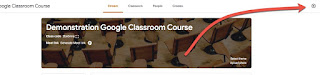
Organization is huge for Google Classroom - both for you and your students.  One key can be ONLY using the Stream for announcements.   (Here is the short video for this topic: Using Your Stream for Announcements .) Designating and setting up your stream as only being used for announcements keeps it "clean" and allows students to easily find past announcements - they are not buried among other notifications.  To do this, you will want to change 2 of your classroom settings. First, go to the G Classroom settings by clicking the Gear in the upper right corner Second, change the following 2 items shown in the box below -  1. Make the stream so students cannot add new posts by selecting either of the other 2 options (that students can only comment OR only the teacher can post and comment) 2. Hide all notifications of classwork from the stream This will simplify your stream so that only posts YOU (and any co-teachers) add show up.   Thank you for joining us ...

Google Classroom - Class Drive Folder

Image
(Today's blog will wrap up the Classwork section in your Google Classroom.)  Sometimes you want to access materials - including assignments turned in by students - in your Drive instead of in Classroom.  This is possible, but it is really important to understand where this folder is located and NOT DELETE certain parts so that your Classroom can continue to run smoothly. To access your Class Drive Folder: When in your classroom, click on Classwork - Look in the upper right corner for the Class Drive folder, click on it - This will open up your Google Drive into the class folder.  The name of the class will be the final listing within the breadcrumb trail - All resources and assignments shared within the course will be within this folder.  Those that are assignments and students are turning in work will be in a folder.  Resources will be listed at the bottom.  Additionally, there will a Templates folder - this folder contains any of the ite...

Google Classroom - Reorganize Your Classwork

Image
Sometimes you want to move a topic to the top of the Classwork section to highlight it for students that need that focus.  Or maybe you accidentally assigned an item to the wrong topic, and need to re-assign it.  It is easy to reorganize items within your Classroom as long as they are within your Classwork section (this does not work for items in the stream). To organize your Classwork: When in the Classroom click on Classwork- To make modifications to a topic, you can click on the More menu (3 stacked dots)- You will get several options - 1 - Rename: will bring up the window below to change the name 2 - Delete: will delete the topic (but not the posts assigned to it) 3 - Copy link: will copy link you can use with students to direct them to the specific topic 4 - Move up/down: will let you reorder the topics You can also move topics by dragging & dropping - Additionally, you can reorder items OR add them to a topic by dragging and dropping -...

Google Classroom - Reuse a Post in the Classwork Area

Image
Reusing a post in the Classwork area of Google Classroom allows you to copy an assignment (or question, quiz or material) from any other Classroom to your current one.  It is a nice way to copy and modify an assignment that is similar to one you already have used.  Or it can be a nice way to copy an assignment from another class into the current one. To reuse an item: When in the course you want to add the item to, click on Classwork - Click on Create - Select Reuse post - In the window that pops up, you can see the assignments you have already created in the current course.  If you are copying one from this course to modify, find and select it here - If you want an assignment from another course, click the arrow at the top left - Find the course you which to copy from, select it.  Then select the item you wish to use from the list that shows up -

Google Classroom - Using and Updating Topics

Image
More about Topics in Google Classroom: To see the topics you have created in Google Classroom, click on Classwork at the top - Your topics will be listed on the left side of the screen - The default view is All topics, which will display all your classwork, organized by topics - To add a topic when you are creating a new resource/assignment, Topic is in the middle of the window - Click on that option, you have the choices of 1. No topic, 2. Create a topic on the fly, and 3. Selection of existing topics - To add a topic to an existing resource or assignment, click on the More menu (3 stacked dots) - Choose Edit - This will display the item so you can make add a topic, or change topics  for that item -

Google Classroom - The To-Do Menu in the Sidebar

Image
If you are going to Google Classroom and want to get a list of work needing your attention, this is very easy to do - as a teacher or as someone enrolled in a course.  This can be especially useful when you have multiple courses to manage. (It is probably worth a few minutes to demonstrate this to your students so they know about it as well.) To get to the To-Dos, click on the 3 horizontal lines (some people call this the hamburger or pancakes...) - Click on To-do under teaching to see the assignments you have given - This window will display all your assignments, along with their status (how many turned in, how many were assigned, how many have been graded) - If you want to select to see this just for one class, look over on the left upper corner where it says All classes - Clicking that will display a dropdown of all your classes, so you can choose which one to view - As a student, looking down a bit further in the left sidebar (seen by clicking those 3 hor...

Google Classroom - Adding an Assignment

Image
To add an assignment in your Google Classroom, first select the Classwork tab at the top - Then click on the blue +Create button - From the drop-down that appears, select Assignment - Enter in the assignment information on the screen that appears.  These are the areas of the screen: Title of assignment Any instructions or other information you want to include with the assignment Point value (can be No Points) Due date (can be No due date) Any attachments/Drive files/Youtube videos/hyperlinks you want included Assign and Trash buttons If you click on the arrow to the right of Assign, you get the options to schedule the assignment to appear on a future date, or save it as draft to complete later -