Posts

Google Mail - Attach Files to your Email
Image
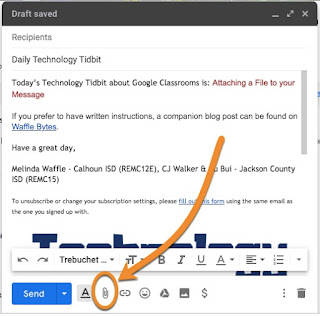
If you need to share a file that is located on your device with a person, you can attach the file via your email message.  Here are the steps to do this. Begin composing your email message.  When you are ready to attach a file (or multiple files), click on the paper clip icon at the bottom of the compose window The standards "open" window will pop up 1 - Select the file you want to attache, then 2 - click on Open 1 - The file will be added at the bottom of the message; if it is larger (or you are on a slow Internet connection) you may see a bar showing the attachment progression.  Once it is loaded the title of the attachment will convert into a hyperlink and an X will appear next to it on the right side. 2 - The attach icon will change to include a piece of paper around - this is an indicator that there is an attachment connected to your message (if you have a longer message and are not looking at the bottom this can be a useful You can attach multiple...

Google Mail - Adding a Hyperlink

Image
You may want to add a hyperlink to your email for your recipients.  This is very easy to do when creating your message. (Here is the short video for this topic: Adding a Hyperlink .) When composing your message, 1 - highlight the text you wish to link and then 2 - click on the link icon in the bar at the bottom Or you can use a shortcut by pressing Control + K The hyperlink window will appear.  1 - this is the text that will be linked; if you didn't highlight text, this will be blank and you can type in the text which should appear in the email message. 2 - this is where you put the URL (link) you wish to direct them to This will create the hyperlink in the body of your email message so people can directly go to the linked page Thank you for joining us for this episode of Technology Tidbits, brought to you by Melinda Waffle (Calhoun Intermediate School District), and CJ Walker and Du Bui (Jackson County Intermediate School District)

MKL Day Volunteer Project Financial Support

The Michigan Community Service Commission is providing volunteer project support to Michigan organizations as part of the Martin Luther King Jr. National Day of Service 2020. Note that projects engaging youth volunteers & financial literacy will be given preference.  All proposed events or activities must occur on or around Martin Luther King, Jr. Day beginning Friday January 17, 2020 through Friday January 24, 2020. Preference will be given to events that occur sometime during Friday, January 17th through Monday, January 20th. Awards valued at up to $1,000 are available from partners Michigan Nonprofit Association and Youth Service America and will be distributed based on the following scale: $1,000- Engage 300 or more youth volunteers $750- Engage 100 or more youth volunteers $500- Engage 50 or more volunteers $250- Engage at least 25 volunteers $100- Engage at least 10 volunteers All partners must provide $1 for $1 cash or in-kind match suppor...

Google Mail - Composing a New Message & Setting Recipients

Image
When you are composing email, you have several options when selecting how to send the message to recipients.  There is a different reason for using each option.  Let's explore them. (Here is the short video for this topic: Comping & Recipient Options .) First, to compose a new message you can either click on the Compose button Or you can use a shortcut by pressing the C key Either one will open up the Compose window where you create your email message. At the top you set the recipients of your email.  This is where you have three options- 1 - TO: this is the standard recipient type, and is used the most.  Email addresses are entered for each recipient that you want to receive the email 2 - CC: this stands for Carbon Copy.  CC is used if there is a person (or are people) you want to share the email with to keep them informed, but they are really not the primary person you are communicating with. 3 - BCC: this stands for Blind Carbon Cop...

US Census Bureau History Archives

Image
US Census Bureau Site - 10/2019 article about the 1929 Stock Market Crash The US Census Bureau has a History area where a monthly article is published, sharing a historical event along with interesting facts, economic impact, and other tidbits - all using census data and records.  They provide an archive where you can find past articles:

Google Classroom - Adding Guardian Accounts

Image
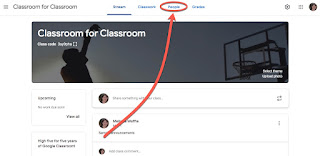
If you are using Google Classroom quite a bit for your students, it is worth taking the time to add the Guardian accounts as a way to communicate home with students.  An important piece worth noting - when you add the Guardians, it ties that email to the student's account NOT your Classroom.  This means if two teachers have the same students only one of them has to add the guardian and it is available for both Classrooms. If you have this feature turned on, parents/guardians that have their email tied to the students can opt to receive an email daily or weekly with missing work, upcoming work that is due, and general information about happenings that week.  They cannot see student work from it.  Important to note - they can be signed up with ANY email (they do not have to have a Gmail account). How to enable and set up Guardian accounts: When in your Classroom, click on the People tab - Click on Invite guardian next the student's name - Start typing in...

Google Sheets - Separate Phone Numbers

Image
I had a first today - I was asked to prepare some data for an upload, and phone number was one of the fields.  Unfortunately, the numbers needed to be divided into area code, prefix, suffix and extension.  Ugh!  Add to that some phone numbers were all numbers, while others had periods, dashes and/or parenthesis in them.  So, I ended up using 2 methods to prepare it for a data upload.  In this post, we will first review using the LEFT & RIGHT functions - useful functions if you ever need to select just some of an entry.  Then we will revisit using the SPLIT function, along with this application of it.  LEFT & RIGHT functions This was the quick way to divide the phone numbers that had no punctuation or text entered with them.  First - the functions: LEFT - copies only the designated number of characters beginning on the left side of the entry RIGHT - copies only the designated number of characters beginning on the right side of t...